
Integration
Send form submissions into Google Sheets rows
Send each new Maxforms response to an existing Google spreadsheet. Choose the destination tab and the answer fields that become columns.
Connect your account, spreadsheet, and tab
- 01
Connect Google Sheets
Open Integrations in the workspace sidebar. Find Google Sheets and select Connect, then approve the requested Google permissions.
- 02
Choose a spreadsheet
Open your form’s Integrate tab and connect Google Sheets. Choose Connected Account, then Select a Google Spreadsheet.
- 03
Choose the destination tab
Under Sheet, choose an existing tab. Create the spreadsheet and tab in Google Sheets before connecting.
- 04
Choose Fields to Send
Select the answers and optional Submission ID or Submission Date. Their selected order determines the column order.
- 05
Submit and test
Save with Submit, then send a new test response. Confirm that the row reaches the intended spreadsheet and tab.
What gets written to Google Sheets
Maxforms appends one row per new response. It writes values in the order selected under Fields to Send.
Add the header row yourself. Changing a header label in Google Sheets does not change which answer Maxforms writes to that column.
Multiple-choice answers arrive in one comma-separated cell. Existing responses are not backfilled when you connect a sheet.
Example: a lead form becomes a spreadsheet row
| Column | Fields to Send order | Example value |
|---|---|---|
| A | Name | Alex Morgan |
| B | [email protected] | |
| C | Topics | Pricing, Demo |
| D | Submission ID | The response’s unique identifier |
See the actual Google Sheets connection screen
Use Select a Google Spreadsheet to open Google’s file picker, then choose the destination tab under Sheet.
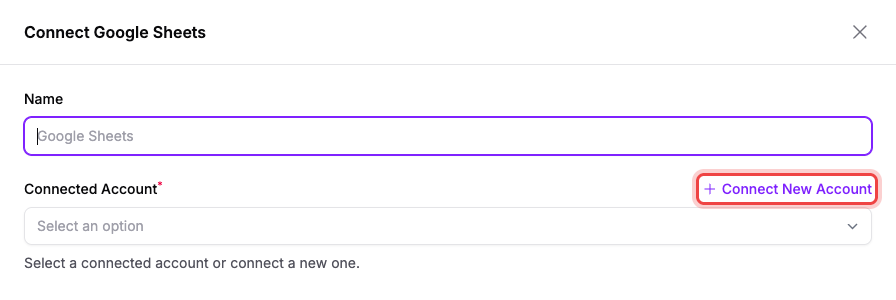
Google Sheets setup guide includes the account connection and form configuration screens.
When rows stop arriving
Open the events log with the clock icon on the form’s Google Sheets integration. Read the failed delivery’s error before changing your field selection.
If Google access was removed, reconnect the account. If the tab was deleted, select an existing tab. Failed rows are not automatically replayed.
Your responses remain in Maxforms. Use the Submissions tab to recover missing rows, then send a new test response.
Questions
Frequently asked questions
01Does Maxforms create the spreadsheet or its headers?
No. Create the spreadsheet and tab in Google Sheets first, then add a header row yourself. Maxforms appends the selected answer values.
02Does connecting a sheet copy older submissions?
No. Only new responses are sent after the integration is saved. Export or copy existing submissions separately.
03Can I pause one form without disconnecting Google?
Yes. Turn off the Google Sheets integration on that form’s Integrate tab. Other forms using the same account keep their own settings.
Start free
Ready to build smarter online forms?
Create secure online forms, automate submissions, collect payments, and launch faster with Maxforms, the powerful alternative to Jotform.