Connect your Google account to Maxforms, then choose the spreadsheet and the tab each form should write to. From then on, every new response is appended as a row, which also makes the sheet the closest thing Maxforms has to a rolling export.
Create the spreadsheet first#
Maxforms writes into a spreadsheet you already own; it can't create one for you. In Google Sheets, make the spreadsheet and the tab you want to use before you start.
Connect your Google account#
- In the sidebar, select Integrations.
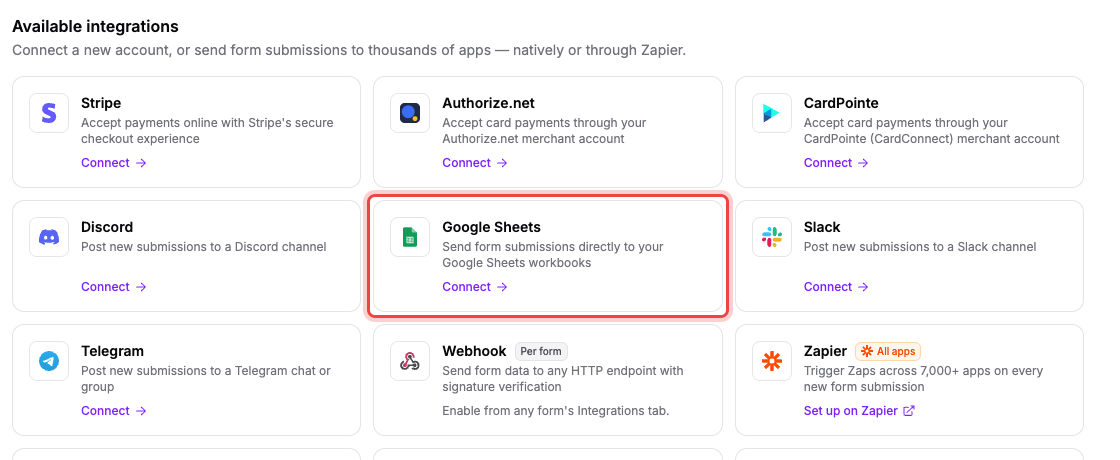
- Under Available integrations, find the Google Sheets card and select Connect.
A Google window opens. Sign in and allow the requested access. Maxforms asks only for permission to work with files you pick yourself; it can't see the rest of your Drive.
Approve everything Google asks for. If you leave a permission unticked, Maxforms can't write to the sheet and asks you to connect again.
Your Google account then appears in the connected accounts table on the Integrations page, listed by its email address.
Choose the spreadsheet and tab#
- Open your form and select the Integrate tab.
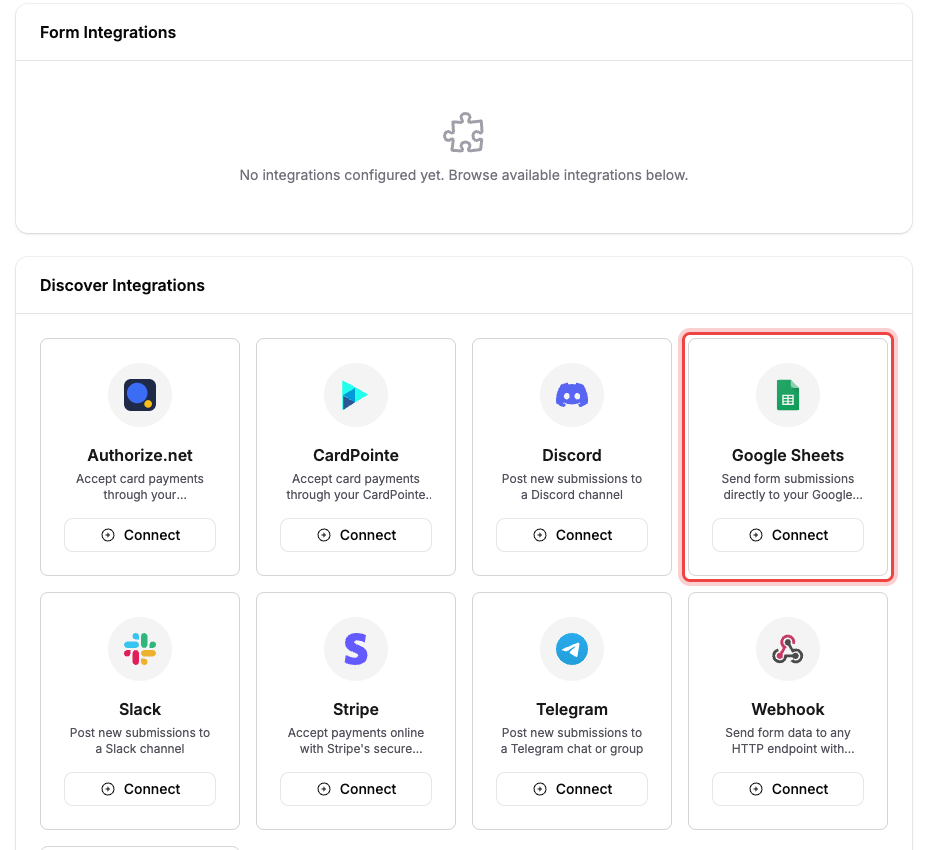
- Under Discover Integrations, find Google Sheets and select Connect.
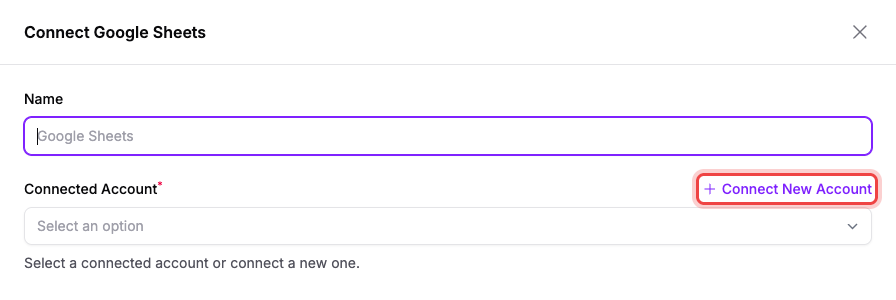
- In the Connect Google Sheets panel, pick your Google account under Connected Account.
- Select Select a Google Spreadsheet. A Google picker opens; choose your spreadsheet from it.
- In Sheet, choose the tab within that spreadsheet to write to.
- Under Fields to Send, tick the answers you want as columns. You can also include Submission ID and Submission Date.
- Select Submit.
Google Sheets now appears under Form Integrations, and the row links straight to the spreadsheet.
What the columns look like#
Maxforms appends one row per response, in the order you ticked the fields under Fields to Send, first field first. It doesn't write a header row, so add your own first row in Google Sheets to label the columns. Reordering that first row later doesn't change where Maxforms writes; the order is fixed by your field selection, so change it in the integration if you want different columns.
Values are written exactly as they were submitted. Answers that allow several choices arrive as one comma-separated cell.
Only new responses are copied#
The integration starts working from the moment you save it. Responses already sitting in your Submissions tab aren't copied across, so connect the sheet before you start collecting if you want a complete record.
Use the sheet with Services#
See If you use Services for how appointment and subscription changes affect this integration.
Change or remove it#
- Pause one form: switch the toggle on the Google Sheets row off on the form's Integrate tab.
- Change the spreadsheet, tab, or columns: select the pencil icon on the same row.
- Remove it from this form: select the trash icon.
- Disconnect Google entirely: on the Integrations page, open the row's actions and select Disconnect. Maxforms lists every affected form first. Disconnecting switches the integration off everywhere but keeps the settings, so reconnecting the same Google account turns them back on.
Switching a form to a different Google account clears its spreadsheet and tab; you'll be asked to pick them again.
If the sheet stops filling up#
- On the form's Integrate tab, select the clock icon on the Google Sheets row to open its events log. Failed writes are listed with Google's own reason.
- Deleted the tab or selected the wrong one? Edit the integration and select an existing tab.
- Removed Maxforms from your Google account, or deleted the spreadsheet? The connection shows an error on the Integrations page and a banner asks you to reconnect. Select Reconnect and approve in Google again.
Renaming a selected tab preserves its identity. Older connections may need you to select the renamed tab again to bind that identity.
Renaming or moving the spreadsheet also preserves its identity. Maxforms tracks the selected file and tab by their identifiers.
Rows that failed while the connection was broken aren't filled in afterwards. Everything is still in the form's Submissions tab, so copy across what you need by hand.