Spam filtering is on for every form you create: you don't have to switch anything on, and it's available on every plan. Flagged responses never count toward your monthly submission limit, and never trigger your notification email or any of your integrations.
What Maxforms checks#
Every response is scored the moment it arrives, using signals a real person never trips. The checks fall into two groups, and the difference matters: one group is reviewable, the other isn't.
Held for your review: these land in the form's Spam tab, where you can read them and rescue anything legitimate:
- How much is coming from the same place. More than 20 attempts from one network in an hour is treated as suspicious.
- A stale page. If the form page sat open more than 24 hours before the response was posted, its load token has expired.
- The bot check. If your form uses Cloudflare Turnstile and the check doesn't pass.
Rejected outright: these are treated as definitely automated and are not shown in the Spam tab:
- A hidden field. Your form carries a field nobody can see. Humans leave it alone; automated scripts fill in everything they find.
- A submission with no real page load, or filled in under 2 seconds. A form posted without ever being opened, or completed in less time than it takes to read it, is not someone typing.
Because the second group is never surfaced, a genuine respondent who somehow completes a very short form in under two seconds won't appear anywhere. If a respondent insists they submitted and you can't find them, check Incomplete before you conclude that: a response whose payment never landed sits there, not in your Inbox. If it isn't there either, the speed check is the likely explanation, so ask them to submit again at a normal pace.
None of this asks your respondents to do anything. There's no puzzle and no "click all the traffic lights." For almost everyone, the form just works.
Find what was caught#
- Open your form and select the Submissions tab.
- Select the Spam tab above the table.
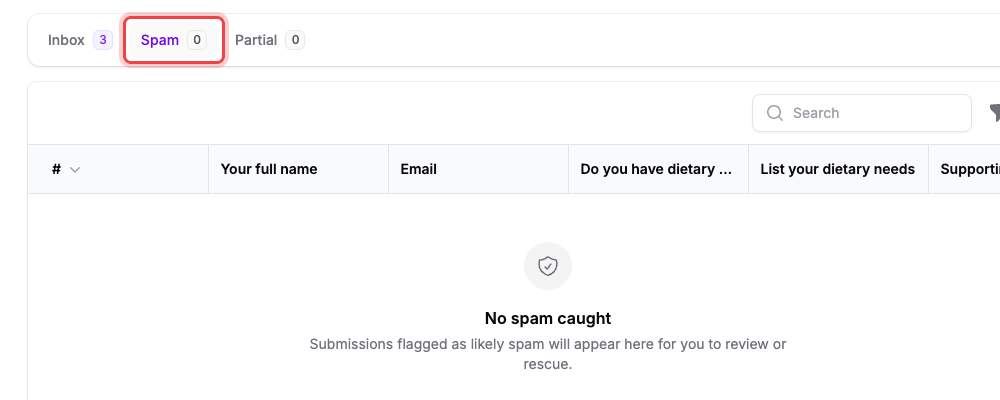
The tab carries a count, so a glance tells you whether anything needs looking at. When nothing has been caught it reads No spam caught: Submissions flagged as likely spam will appear here for you to review or rescue.
Spam responses look like any other in the table: you can open one, read every answer, and decide.
Rescue a real response#
If something legitimate was flagged:
- Open the Spam tab.
- On the row, open the Actions menu and select Not spam.
- Select the confirm button.
Maxforms asks first: Mark as not spam? It also warns you what follows: This submission will move to your inbox, and your notifications and integrations will fire as if it had just been submitted. That's the important part. Rescuing isn't just filing: your notification email goes out, your respondent confirmation goes out, and every connected integration receives the response, right then.
To rescue several at once, tick the rows and use the Not spam bulk action. It only appears while you're on the Spam tab.
There's no "mark as spam"#
Nothing moves a response from your Inbox into Spam. If junk gets through, delete it: deleted submissions go to the workspace Trash and can be restored for 30 days. See Trash and recovery.
Turn filtering off for one form#
Filtering is per form, so an internal form on a network that keeps tripping the rate check can opt out without affecting anything else.
- Open the form and select the Settings tab.
- Scroll to Access.
- Switch Spam prevention off.
- Select Save changes.
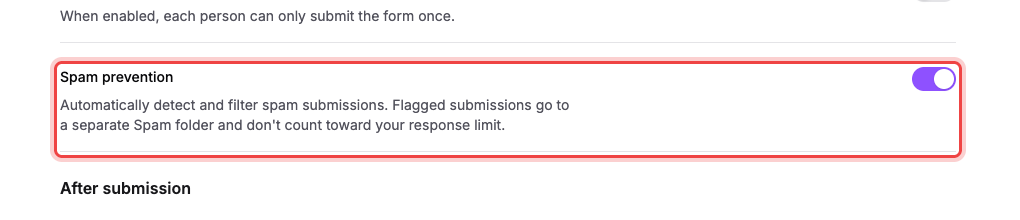
With it off, nothing on that form is scored: every response goes to the Inbox, counts toward your monthly limit, and fires your notifications, junk included. The Spam tab stays visible, it just stops filling up.
Spam doesn't cost you anything#
Flagged responses are excluded from:
- Your monthly submission limit and any per-form submission cap you've set.
- The numbers on the Insights tab (the tile even says so: Spam is excluded).
- Notification emails, respondent confirmations, and integration deliveries.
So a spam wave can't burn through your plan or fill your inbox.
If a real response landed in Spam#
Rescue it with Not spam and it behaves exactly as if it had just arrived. If it keeps happening to people on one network (a whole office behind a single connection, for instance), turn Spam prevention off for that form, or ask them to wait a while between submissions.
If you're getting spam in your Inbox#
Check Spam prevention is still on for that form, under Settings → Access. Beyond that, Prevent duplicate submissions in the same section stops one person submitting repeatedly, and Limit number of submissions caps the total a form will accept.
If a spam response disappeared before you looked at it#
Maxforms keeps up to 1,000 spam responses per form. Once a form passes that count, the oldest are cleared out permanently to stop it piling up, and that clearing skips the Trash. If you think something legitimate was caught, check the Spam tab sooner rather than later.