After a respondent submits, Maxforms either shows a message on the form page or sends them to a URL you choose. Both live on the form's Settings tab under After submission; the default is a thank-you message.
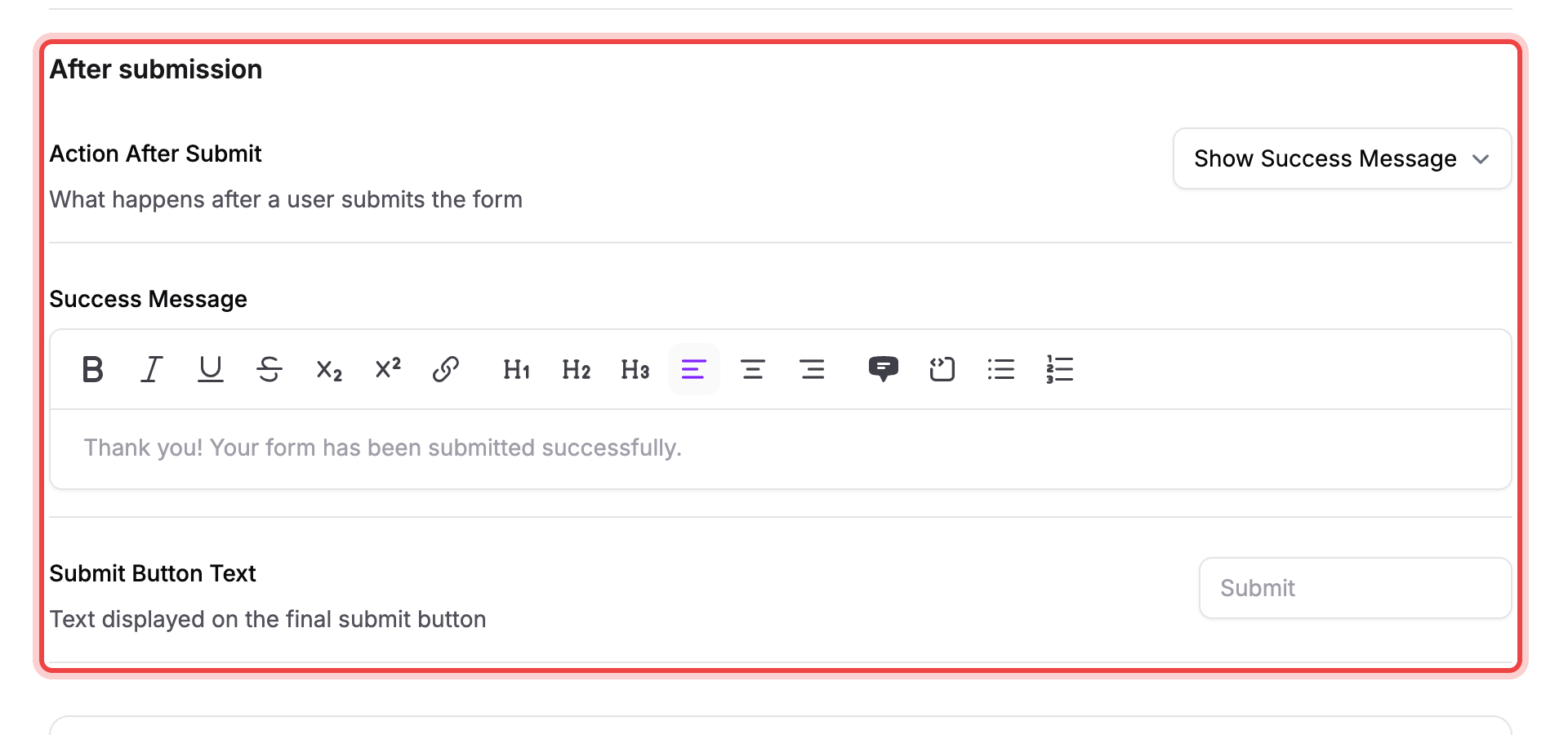
Show a thank-you message#
- Open the form's Settings tab.
- Under After submission, set Action After Submit to Show Success Message.
- Write your message in the Success Message field.
- Select Save changes.
Selecting Save changes applies it immediately to your live form; you don't need to publish again for a settings change like this to take effect.
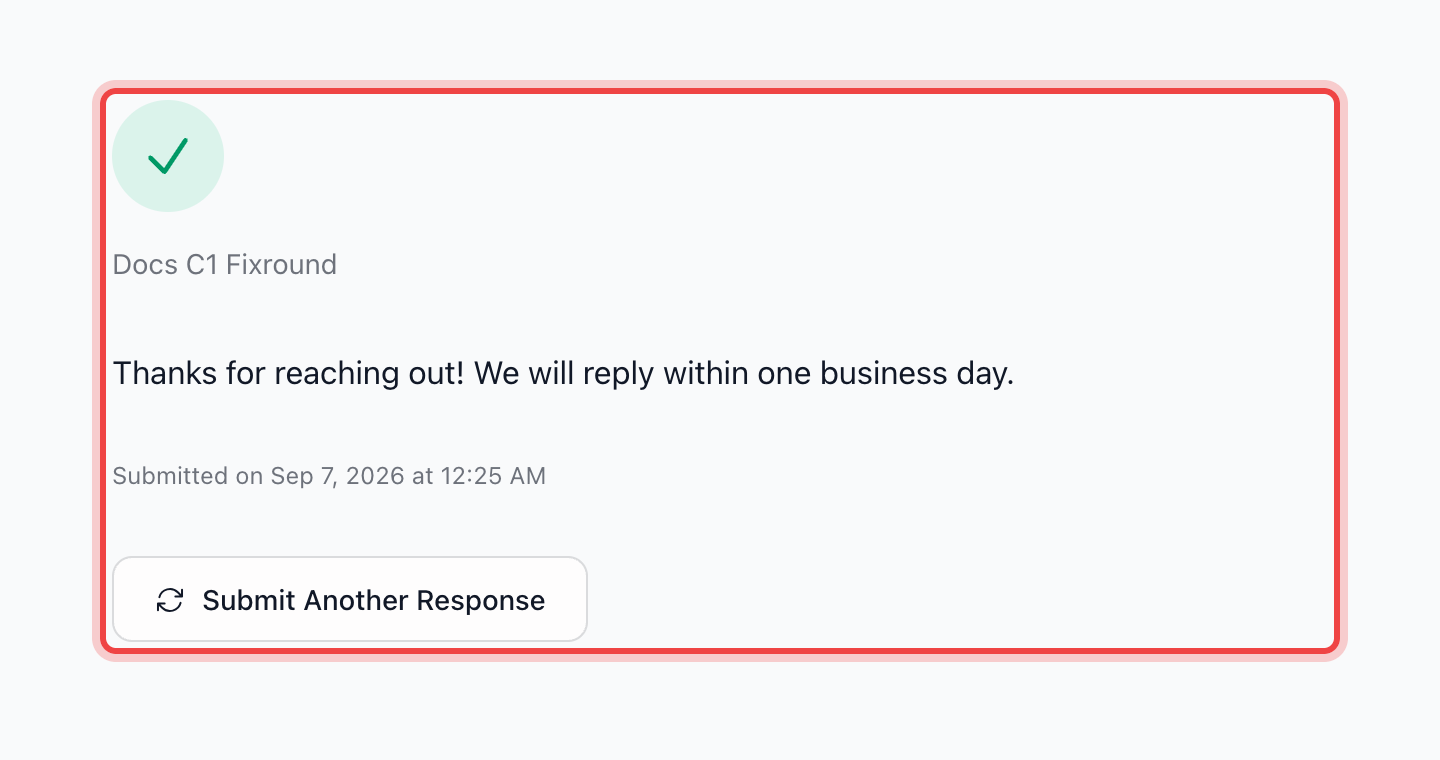
Send them to your own page#
- Under After submission, set Action After Submit to Redirect to URL.
- In Redirect URL, enter a full address starting with
http://orhttps://. A blank or partial address blocks Save changes with a validation message. - Select Save changes.
Respondents land on that page instead of seeing a message on your form.
Change the button text#
Under After submission, set Submit Button Text to whatever you want the button to say. It shows Submit until you change it.
If respondents still see the default message, then check the action and save#
- Confirm Action After Submit is still set to Show Success Message and your text is in Success Message.
- Confirm you selected Save changes after writing it; typing a message without saving leaves the old one live.
- If you've never selected Publish for this form, there's no live form yet for anyone to submit to.
If the redirect does not happen, then check where the form is embedded#
A form embedded with the Maxforms embed script sends the respondent's browser to your redirect URL. A plain <iframe> pointed at your form's URL, without the embed script, can't navigate the page around it, so the respondent sees the success message inside the iframe instead. See Embed your form in your website for the supported embed methods.