Every app you've approved to access this workspace, such as Zapier, is listed under Settings → Authorized apps, along with who connected it and what it can do. Select Revoke access on any app to cut it off right away. Revoking only affects this workspace; the app keeps whatever access it has to your other workspaces.
Open the list#
- Select Settings in the sidebar.
- Open the Authorized apps tab.
Each connected app appears under Apps with access, showing who authorized it, when, whether its access expires, and what it can do.
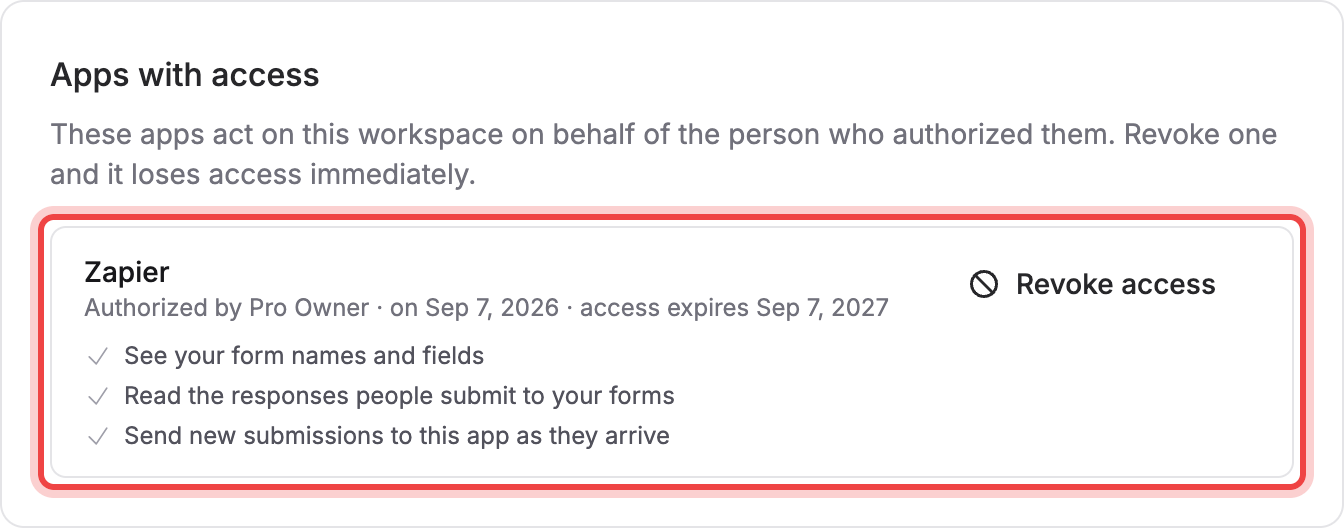
If nothing is connected yet, the tab shows Connect your first app instead, with a link to connect Zapier.
What each permission means#
Under each app, Maxforms lists what it asked for, in the same wording the app saw on its own authorization screen:
- See your form names and fields
- Read the responses people submit to your forms
- Send new submissions to this app as they arrive
Only the permissions an app actually requested are listed under it, so an app that only reads submissions won't show the other two.
Revoke an app#
You can always revoke an app you personally authorized. If you're the owner or an admin, you can revoke any app in the workspace, including ones a teammate connected.
- On the app's row, select Revoke access.
- Confirm by selecting Revoke access again in the dialog.
Maxforms confirms with Zapier can no longer access this workspace, and the app immediately loses the ability to read forms, read submissions, or send webhooks for this workspace. Reconnecting means authorizing it again from the app's side, not from Maxforms.
Each row is one person's connection to one app. If a teammate connected the same app separately, revoking your connection doesn't touch theirs.
If Zapier stops working after you revoke, then reconnect from Zapier#
There's nothing to turn back on in Maxforms. Any Zap built on the revoked connection starts failing right away. Go back to Zapier and connect your Maxforms account again; that sends you through the Authorize Zapier screen and creates a fresh connection. See Connect your form to Zapier for the full setup.