Both live under Advanced in the Add field picker. Address collects a structured postal address that adapts to the country you're collecting for, and Currency collects a money amount (a donation, a budget, an estimate) without charging anything.
Add an address field#
- In the builder, select Add field.
- Under Advanced, select Address.
- Select Advanced edit to open its settings.
Choose which countries you accept#
The Country setting decides how much of the world your form covers, and each option explains itself in the dialog:
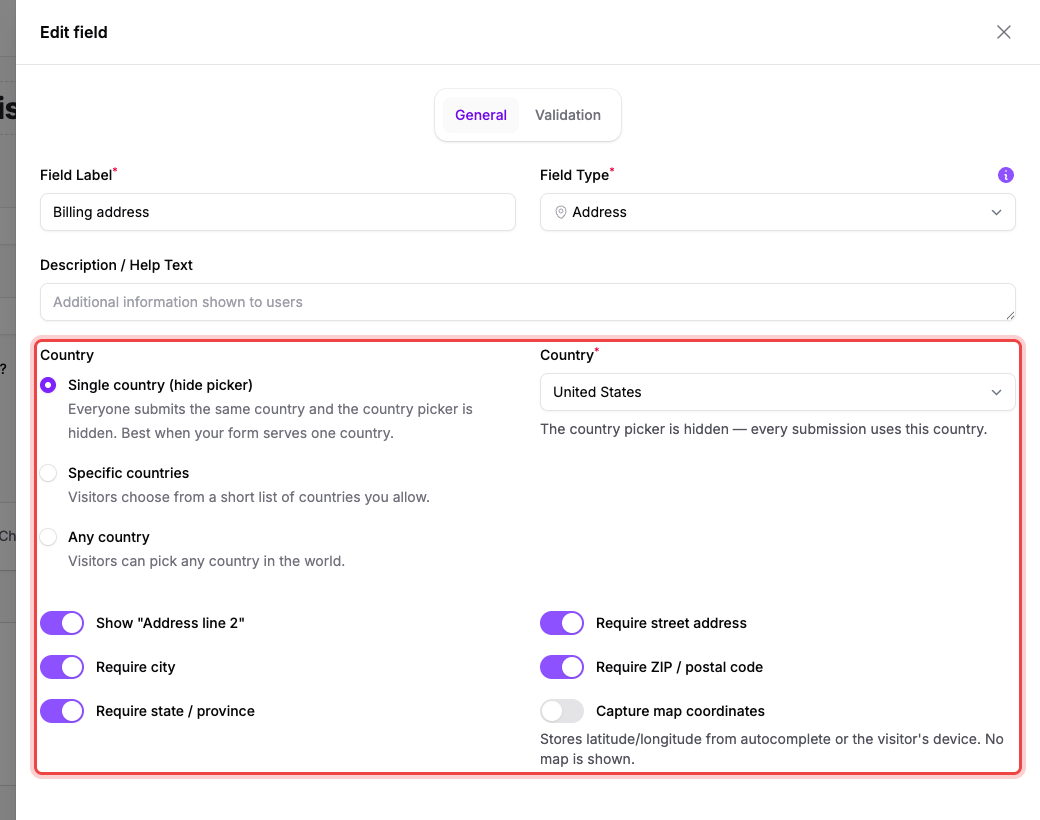
- Single country (hide picker): Everyone submits the same country and the country picker is hidden. Best when your form serves one country. Pick that country in the Country dropdown on the right.
- Specific countries: Visitors choose from a short list of countries you allow. Choose at least two under Allowed countries, and optionally a Default country that's pre-selected when the form loads.
- Any country: Visitors can pick any country in the world.
Choose which parts to ask for#
Toggles below the country setting control the rest of the address:
- Show "Address line 2": adds an apartment/suite line.
- Require street address, Require city, Require state / province, Require ZIP / postal code: each part can be optional or mandatory on its own.
- Capture map coordinates: Stores latitude/longitude from autocomplete or the visitor's device. No map is shown.
Select Save changes, then Publish changes.
What respondents see#
The address renders as a small group of fields, labeled for the country in play. A US address asks for Street address, City, State, and ZIP code, and the state list is a dropdown of that country's subdivisions. Address line 2 stays out of the way behind a + Add apartment, suite, etc. link until it's needed.
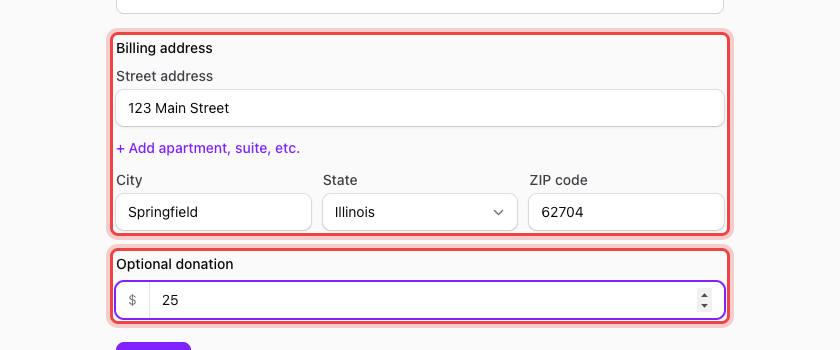
In the submission, the whole address is shown as one readable line: 123 Main Street Springfield, IL 62704 United States.
Add a currency field#
- In the builder, select Add field.
- Under Advanced, select Currency.
- Select Advanced edit and set:
- Currency: the currency the amount is in, such as US Dollar (USD).
- Display: Symbol ($, €, ¥) or Code (USD, EUR, JPY).
- Decimal places: No decimals ($1,200), 2 decimals ($1,200.50), 3 decimals, or 4 decimals. Each option previews itself as you choose.
- Default value: pre-fills the field when the form is opened.
- Select Save changes.
On the Validation tab you can also set a Minimum Value and Maximum Value, so an amount has to fall in a sensible range.
Respondents get a number box prefixed with your currency's symbol or code, as shown above.
If you want to actually charge the amount#
A Currency field records a number. It never moves money. To take a payment on the form, use the Payment field instead; it needs a payment provider connected to your workspace first. See Connect Stripe and accept payments.