Select Publish in the top-right corner of the builder and your form goes live on its own public URL. Copy that link from the Share tab and send it anywhere (email, chat, social) or embed the form in your own site.
Publish#
- In the builder, select Publish.
- You land on the form's Share tab with a Your form is live confirmation.
Share the link#
The Share Link section shows your form's public URL. Select Copy and paste the link wherever your audience is.
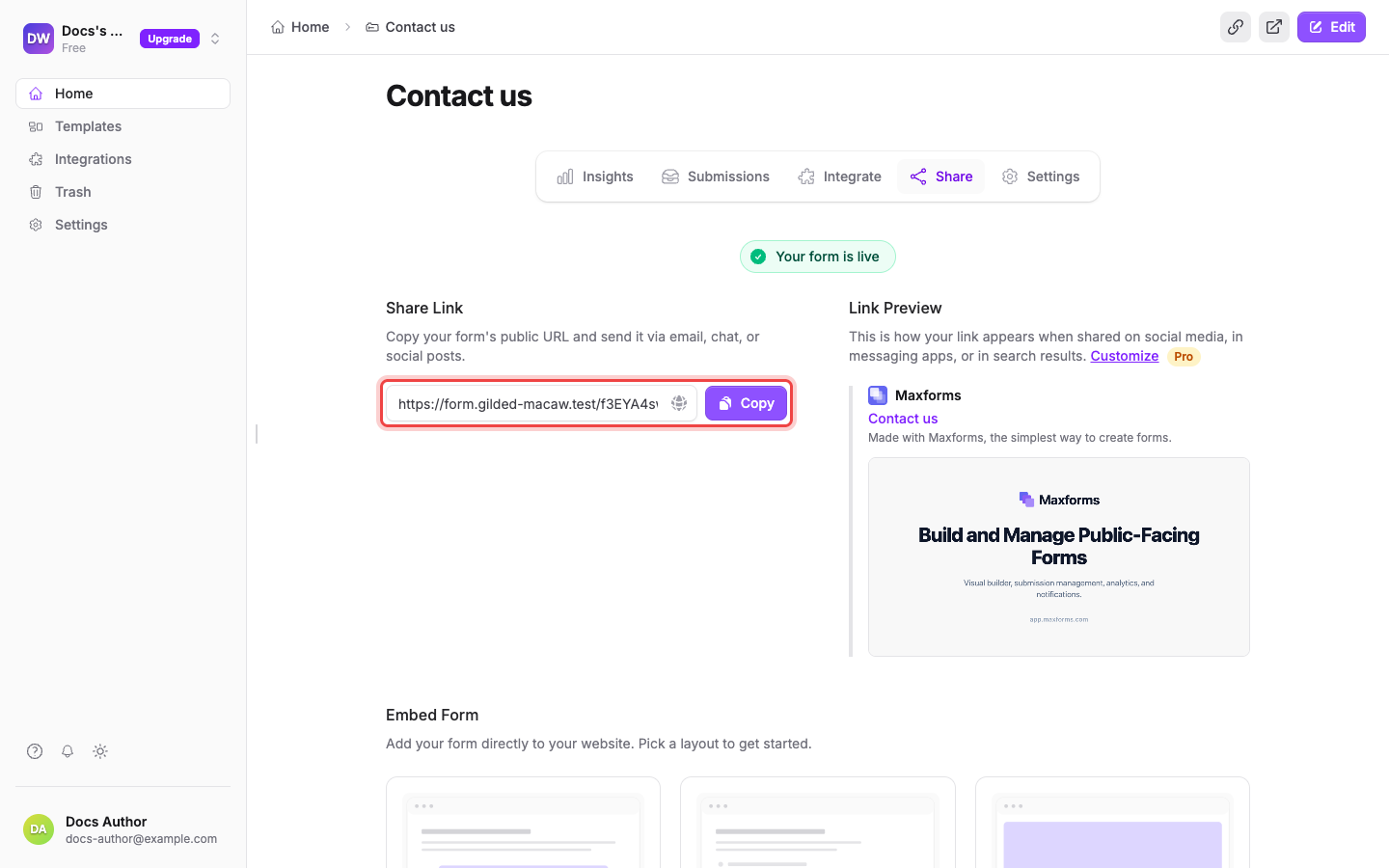
The Link Preview next to it shows how the link unfurls on social media and in messaging apps; customizing the preview is a Pro feature.
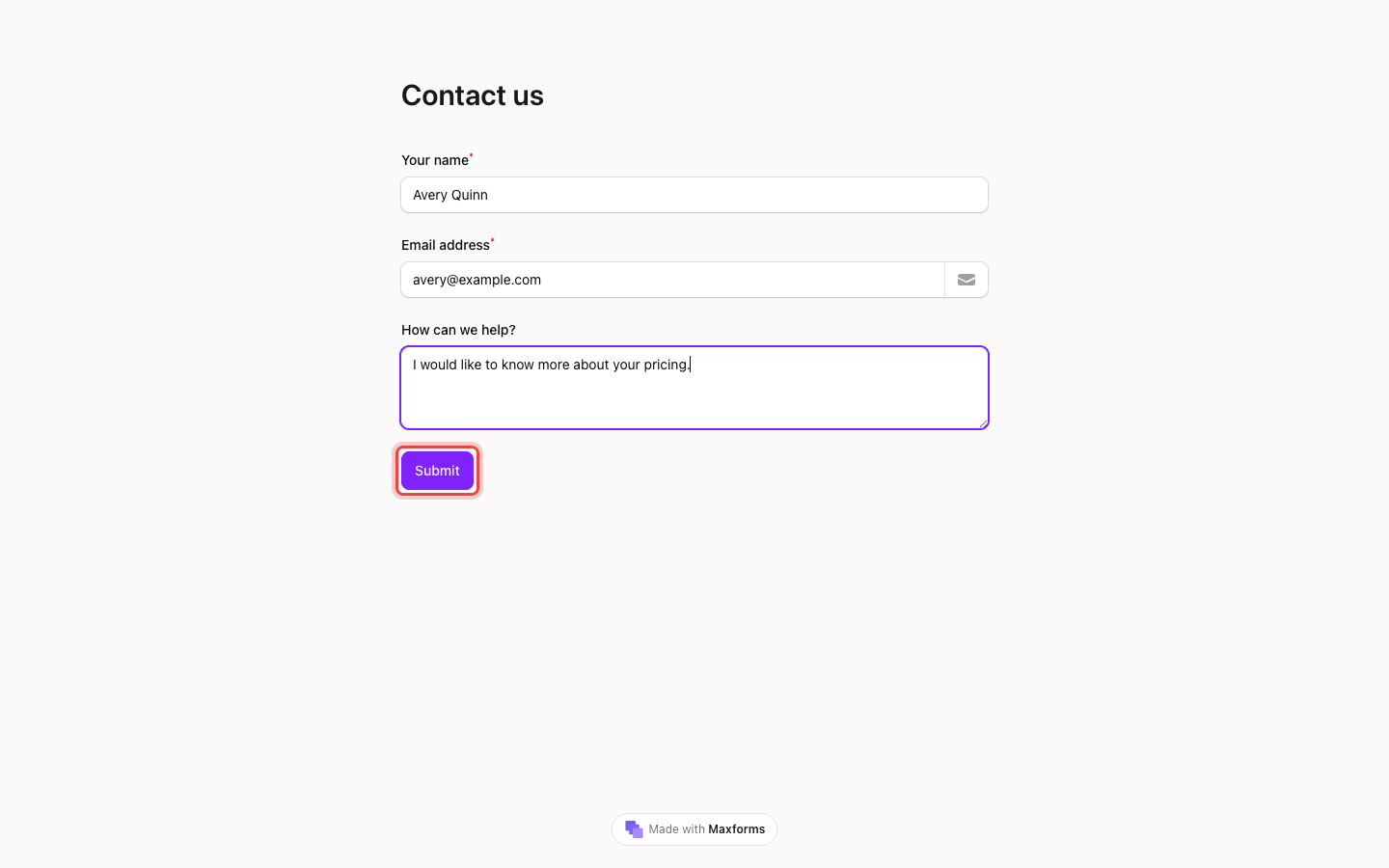
Anyone opening the link sees your form on a clean page, ready to fill in:
Prefer the form inside your own website? The Embed Form section on the same tab offers Standard, Popup, and Full page layouts. See Embed your form in your website for the snippets.
Make changes after publishing#
Edits in the builder don't touch your live form until you say so. Change anything and two buttons appear in the header: Publish changes pushes your edits live, Discard throws them away. Respondents keep seeing the last published version in the meantime.
If Publish asks for a verification code#
You haven't verified your email address yet. Publishing requires it. Check your inbox for a six-digit code from Maxforms, enter it in the dialog, and select Publish again. Use Resend code if the email hasn't arrived.