Connecting Slack takes two steps: link your Slack workspace to Maxforms once, then switch it on for each form and pick the channel. From then on, every new response is posted to that channel as a message.
Connect your Slack workspace#
- In the sidebar, select Integrations.
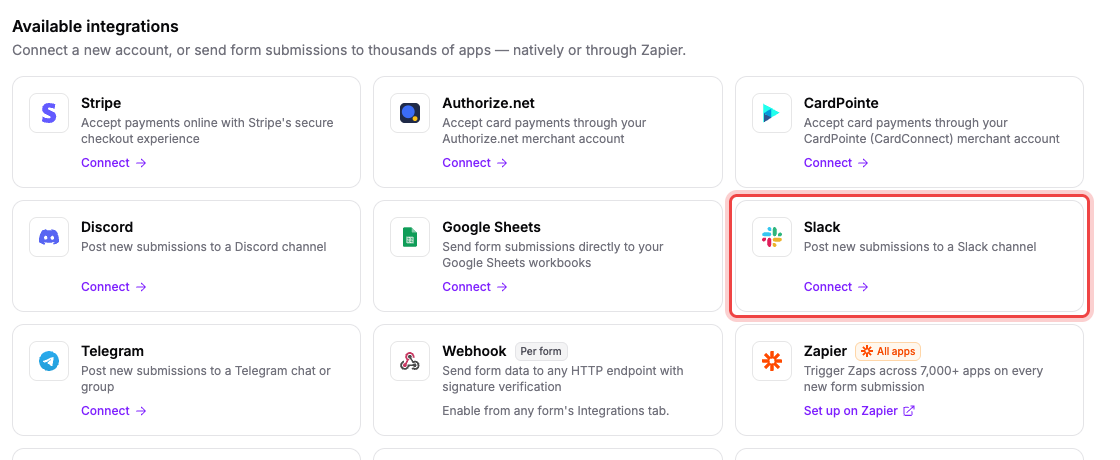
- Under Available integrations, find the Slack card and select Connect.
A Slack window opens. Sign in, choose the Slack workspace you want to post into, and approve the request. Slack asks for permission to post messages and to see and join public channels; it doesn't ask you to pick a channel here, you'll do that in Maxforms in a moment.
When you approve, the window closes and your Slack workspace appears in the connected accounts table at the top of the Integrations page, marked Connected.
Turn it on for a form#
Connecting the account doesn't post anything yet. Each form decides for itself.
- Open your form and select the Integrate tab.
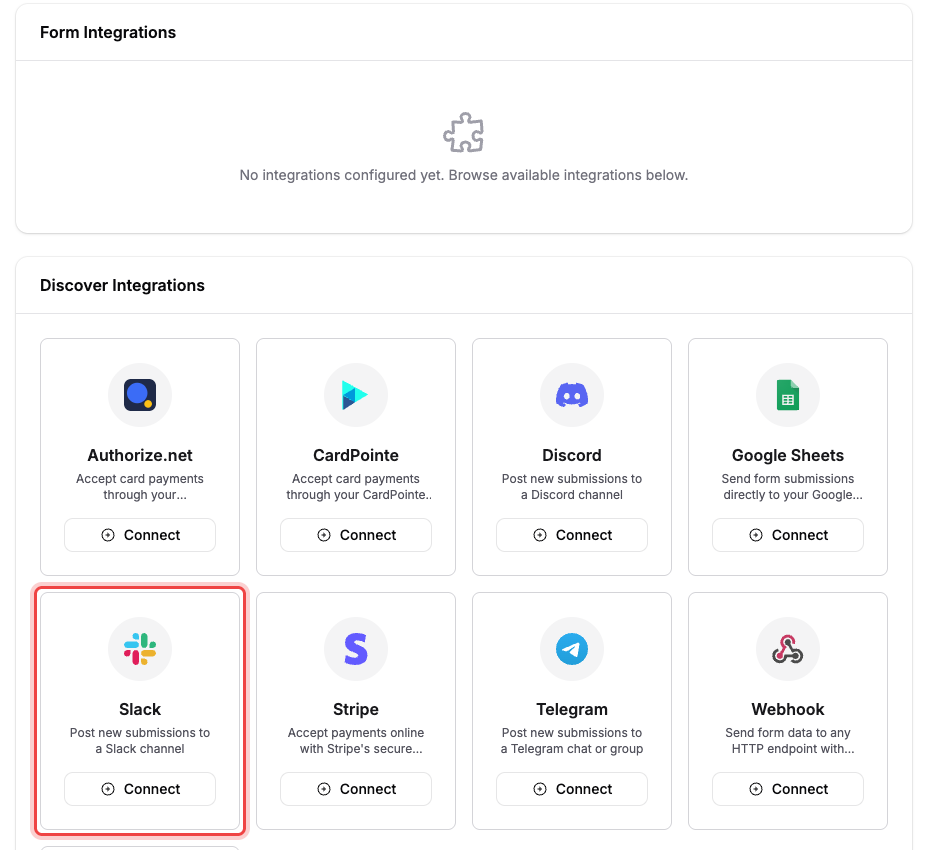
- Under Discover Integrations, find Slack and select Connect.
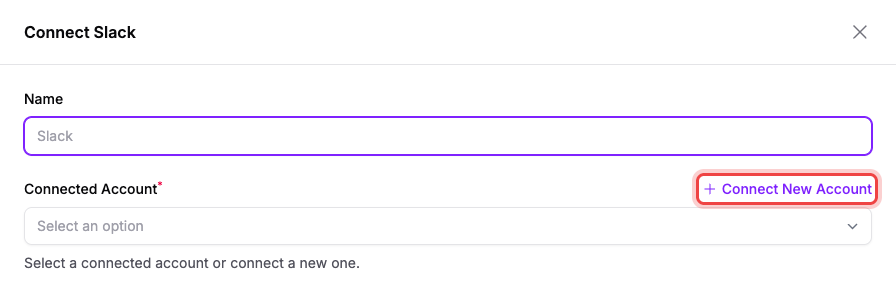
- In the Connect Slack panel, pick your Slack workspace under Connected Account.
- Choose the Channel to post into.
- Under Fields to Send, tick the answers you want in the message. Everything is ticked by default; you can also include Submission ID, Submission Number, and Submission Date.
- Select Submit.
Slack now appears under Form Integrations at the top of the tab. If you haven't linked a Slack workspace yet, use Connect New Account in the same panel to do it without leaving the form.
What the message looks like#
Each response arrives as a single Slack message: a heading with the form's name and the submission number, then the answers you ticked as bold labels with their values underneath, then a footer line with the submission's date and a View submission link that opens the response in Maxforms.
Questions left blank show a dash rather than being dropped, so the message keeps the same shape every time.
If you use Services#
Slack messages report new form responses only; later booking, subscription, or payment changes never post another message. A one-time payment collected at submission holds the message until the payment succeeds, but subscription signups and invoice-after-review requests post before payment, so check the booking or subscription in Maxforms before treating those messages as payment confirmation.
Pause or remove it#
- Pause one form: on the form's Integrate tab, switch the toggle on the Slack row off. Your settings are kept, so switching it back on resumes posting.
- Edit the channel or fields: select the pencil icon on the same row.
- Remove it from this form: select the trash icon.
- Disconnect Slack entirely: on the Integrations page, open the row's actions and select Disconnect. Maxforms shows you exactly which forms are affected before you confirm. Disconnecting switches Slack off on every one of them but keeps their settings, so reconnecting the same Slack workspace turns them all back on.
Uninstalling the Maxforms app from Slack's side has the same effect as selecting Disconnect.
If the channel you want isn't in the list#
The picker only offers public channels the Maxforms app can post to. Maxforms joins your selected public channel when sending a notification. Private channels and direct messages aren't available.
If you created the channel after you connected, select the refresh icon next to Channel to reload the list.
If submissions stop appearing in Slack#
- On the form's Integrate tab, select the clock icon on the Slack row to open its events log. Failed deliveries are listed with the reason.
- If the log says the channel is gone or archived, edit the integration and pick a different channel.
- If the whole connection is broken (someone removed the app in Slack, or the access was revoked), a banner appears in Maxforms asking you to reconnect. Select Reconnect on the Integrations page and approve in Slack again.
Responses are never lost while Slack is broken: they're always in the form's Submissions tab. Reconnecting starts new messages flowing, but it doesn't post the ones that failed while the connection was down.