Select Create Form and you land in AI Form Studio. Type what you need in plain English, select Generate form, and Maxforms drafts the whole thing (questions, labels, field types, and validation) as a form you can then edit like any other. Nothing goes live until you publish it.
Describe the form you want#
- Select Create Form from Home.
- Type your description into Describe your form, or paste a link to import…
- Select Generate form (the arrow at the end of the box), or press ⌘/Ctrl + Enter.
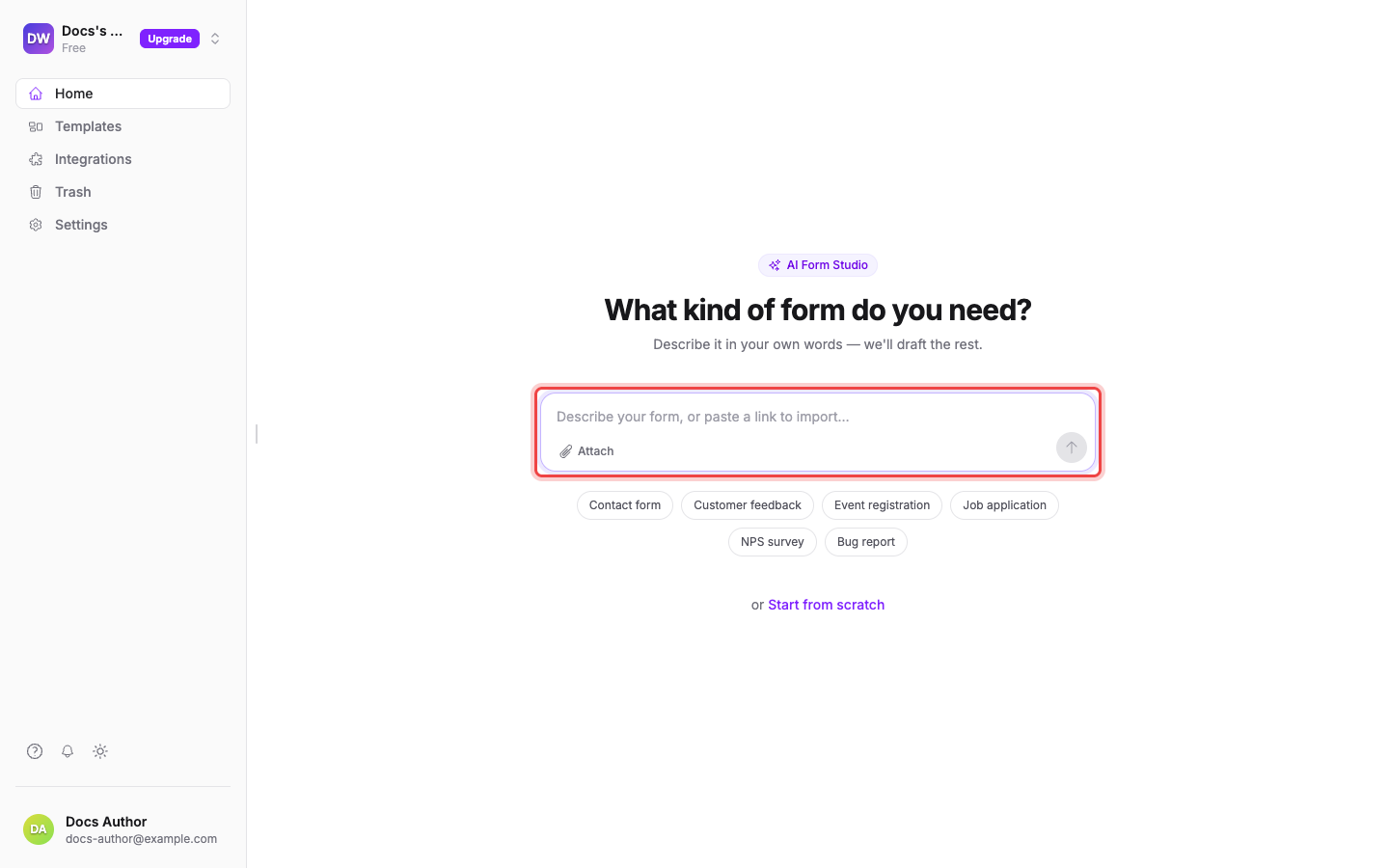
Be specific about the answers you need and you'll get closer on the first try. "A volunteer sign-up form for a community garden: name, email, phone, which Saturdays they can help, and any allergies" produces a form with a phone field that validates, a checkbox list of Saturdays, and a long-text box for allergies.
If you'd rather start from an example, the chips under the box (Contact form, Customer feedback, Event registration, Job application, NPS survey, Bug report) drop a ready-made description into the box that you can edit before generating. Start from scratch skips AI entirely and opens an empty builder.
Generating takes a few seconds. You'll see the steps go past (Building your form, then Finalizing) and a Cancel button if you change your mind. Cancelling throws the draft away.
Rebuild a form you already have#
The same box takes more than a description:
- Paste a link. Give it the address of a form that's live somewhere else and Maxforms fetches it and recreates the questions in Maxforms.
- Attach a file. Select Attach and upload a PDF or a photo of a paper form (PNG, JPG, or WEBP), one file at a time. Maxforms reads the fields off it and builds the digital version.
Treat the result as a first draft, not a photocopy: check every question and its options against the original before you publish.
Change it by asking#
After it generates you're in the AI tab of the builder: your form on the left, the conversation on the right. The Describe a change... box at the bottom keeps the same conversation going, so you can keep refining instead of starting over.
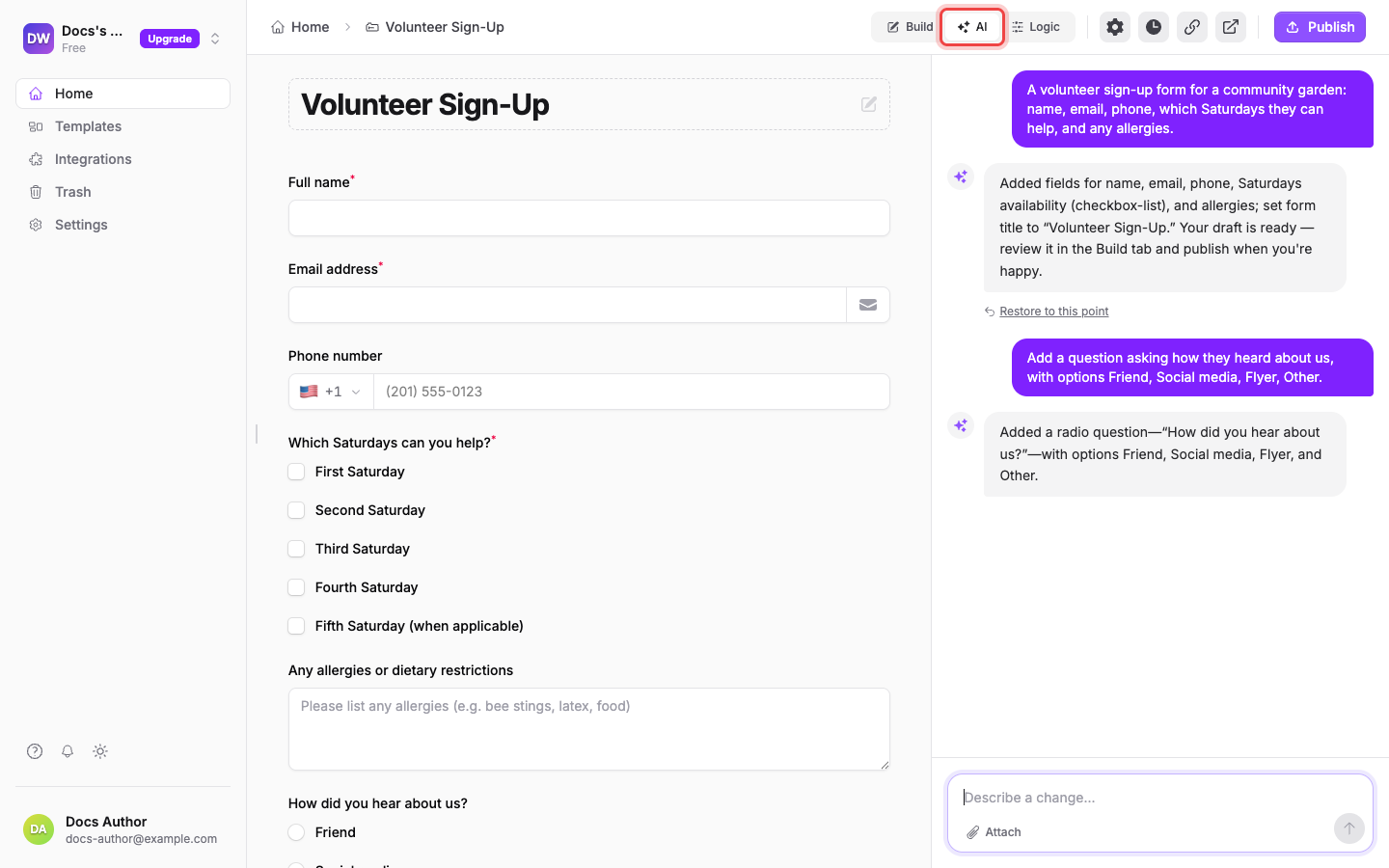
Ask for whatever you'd otherwise do by hand: "Add a question asking how they heard about us, with options Friend, Social media, Flyer, Other", "Make the phone number optional", "Make it shorter". Each reply tells you what changed, and the form on the left updates as you watch.
You can switch to the Build tab at any point and edit by hand: drag questions around, change a field type, adjust validation. The two work on the same form, so you can go back and forth.
Undo an AI change#
Every AI turn leaves a checkpoint. Select Restore to this point under any earlier reply to roll the form back to how it looked then.
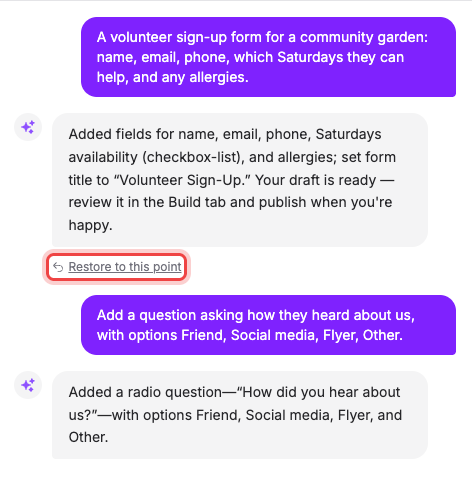
Restoring permanently removes the messages after that point, so Maxforms asks you to confirm first.
Publish when you're happy#
AI edits your draft. Your live form doesn't change until you select Publish (or Publish changes on a form that's already live), which is also your chance to review everything in the Build tab first. See Form builder overview for what publishing does.
If Generate form is greyed out#
The button only wakes up once there's something in the box: a description needs at least 3 characters. If you pasted a very long block of text, trim it to under 50,000 characters.
If you hit an AI usage limit#
Every plan includes a monthly allowance of AI generations, refinements, and imports. When you run out, the chat box is replaced by a note saying so, and you carry on editing the form by hand in the Build tab: nothing you've already built is lost. The allowance resets at the start of each month, and higher plans include more, starting from 10 AI generations a month on Free.
If the imported form doesn't match the original#
Importing works best on straightforward forms. Multi-page flows, questions that appear only after another answer, and unusual widgets often come through flattened or missing. Rather than re-importing, describe the gap in the chat ("Add a second page with the billing questions"), or fix it directly in the Build tab.