Open your form, select the Share tab, and select Copy next to the URL. That link is your form's public address: anyone who has it can open the form and respond, no Maxforms account needed.
Copy the link#
- From Home, select your form.
- Select the Share tab.
- Under Share Link, select Copy.
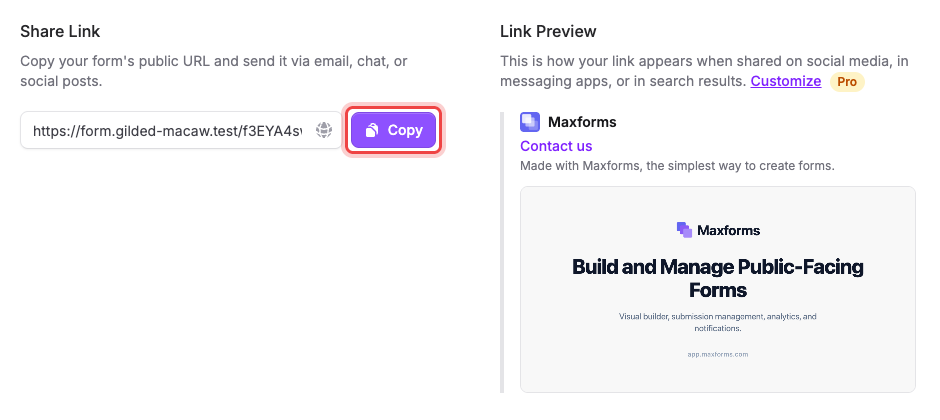
The globe icon inside the field opens the form in a new tab, so you can check what respondents see before you send the link out. The link never changes, so it's safe to print it, put it in an email signature, or schedule a post with it.
Publish before you send the link#
The Share tab is available from the moment you create a form, but the link only works once the form is published. Until then, anyone who opens it sees a page headed This form isn't published yet.
Publish from the builder: select Edit, then Publish in the top-right corner. See Publish and share your form for the full walkthrough.
Change how the link looks when it's shared#
Link Preview shows the card that appears when someone pastes your link into Slack, WhatsApp, LinkedIn, or a text message. Select Customize to edit it.
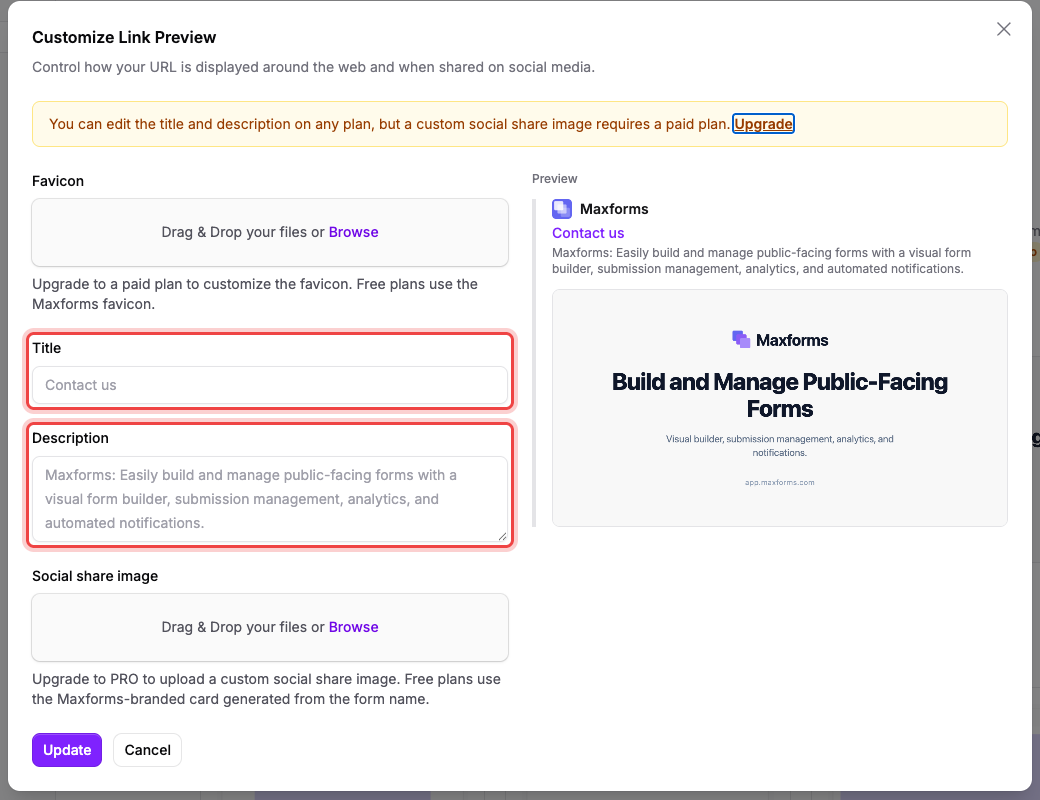
- Title and Description are editable on every plan. Leave them blank and Maxforms uses your form's name and description.
- Favicon and Social share image need a paid plan. On the Free plan, links use the Maxforms-branded card.
Select Update to save. Messaging apps and social networks cache preview cards, so a link you already shared may keep showing the old card for a while.
If your link says the form is unavailable#
Something is stopping the form from accepting responses. Open the form's Settings tab and check, in this order:
- The form has been published at least once. If not, publish it from the builder.
- Under Access, Active is switched on. Switching it off closes the form immediately.
- A schedule or a response cap may have closed it: see Close a form, cap responses, or open it on a date.
If you edited the form and respondents see the old version#
Edits in the builder don't reach your live form until you publish them. Open the form in the builder and select Publish changes. The share link stays the same either way.
If you need a QR code#
Maxforms doesn't generate one. Copy the share link and paste it into any QR code generator: the link is a plain URL and works in any of them.
Put the form on your own site instead#
The Embed Form section on the same tab wraps your form into a snippet you can paste into your website. See Embed your form in your website.