If you're a registered nonprofit, charity, government agency, or educational institution, Maxforms gives you Business-level limits, free. You apply from your own Billing page and it activates immediately: there's no queue, no review, and nothing to wait for.
Who qualifies#
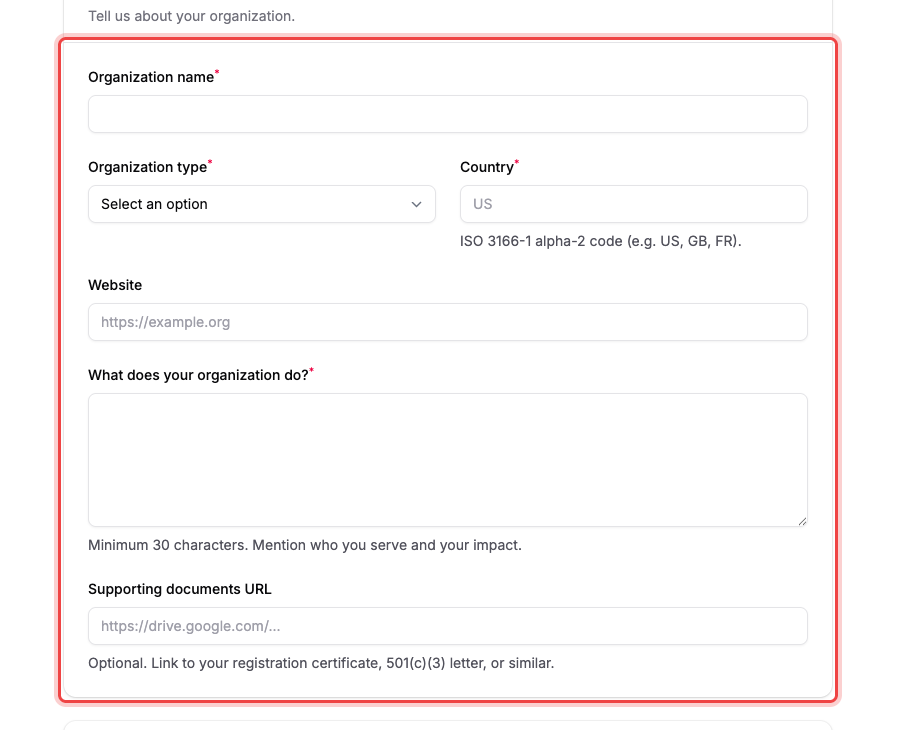
The application asks you to pick an Organization type:
- Registered Charity
- Non-profit Organization
- Government Agency
- Educational Institution
- Religious Organization
- Other
Before you submit, you confirm (with a tick box you can't skip) that you are a registered nonprofit, charity, government, or educational organization, and that the account will be used solely for your organization's purposes. That declaration is what the programme runs on, which is why it can be withdrawn later if it doesn't hold up.
Apply#
Only the workspace owner can apply, and the plan is granted to one workspace at a time.
-
Open Settings → Billing.
-
Scroll to the strip reading Nonprofit, charity, government, or educational org? and select Apply.

-
Fill in Organization name.
-
Pick your Organization type.
-
Enter your Country as a two-letter code:
US,GB,FR. -
Add your Website if you have one. It's optional but it helps.
-
Answer What does your organization do? (at least 30 characters). Say who you serve and what your impact is.
-
Add a Supporting documents URL if you have one: a link to your registration certificate, 501(c)(3) letter, or similar. Also optional.
-
Tick the confirmation box.
-
Select Activate nonprofit plan.
What happens next#
You land back on the Billing page with Welcome to the nonprofit plan. Your workspace now has full Business-tier features, free — thank you for the work you do. The plan is already live: your limits change on the spot.
From then on the Apply strip is replaced by a Nonprofit plan card with an Active badge, spelling out what you're on.
What you get#
The nonprofit plan carries Business-level limits at no cost:
- Unlimited forms
- 25,000 submissions a month
- 10 workspace member seats
- 250 GB of file storage
- Unlimited AI generations and refinements
- Partial submissions, and the full set of notification options: custom sender, CC and BCC, custom subject and message, and PDF attachments
If you already pay for a plan#
Activating the nonprofit plan does not cancel your Stripe subscription. The application page warns you about this before you submit:
You have an active paid subscription. Activating the nonprofit plan will not cancel it automatically — manage cancellation in the Stripe billing portal after submitting this form.
Your workspace switches to nonprofit limits either way, but you'll keep being charged until you cancel. Do that yourself from Settings → Billing → Manage billing in Stripe. See Change your plan and manage billing.
If the Apply button isn't there#
Three possibilities:
- You're not the workspace owner. Only the owner can apply. Ask them, or have them transfer ownership.
- This workspace is already on the nonprofit plan. You'll see the Nonprofit plan card with its Active badge instead.
- You're on the wrong workspace. The plan belongs to a workspace, not to you, so switch to the one you meant.
If your nonprofit plan is revoked#
Maxforms can withdraw the plan if an application doesn't hold up: for example, if the organization isn't what was declared, or the account isn't being used for its work. You'll get an email titled Your Maxforms nonprofit plan has been revoked, with the reason spelled out, and the nonprofit plan stops applying. If you also have a paid subscription, the workspace falls back to that plan; if you don't, it moves to the Free plan with standard limits.
Nothing is deleted, but Free-plan limits start applying immediately. Reply to that email if you think it was a mistake, or upgrade from the Billing page to keep the higher limits.