A workspace is the container everything else lives in: your forms, their submissions, your connected integrations, your teammates, and your plan. You get one automatically when you sign up, and you can create more (a client's forms in one, your own in another) and switch between them from the menu at the top of the sidebar.
What belongs to a workspace#
Each workspace keeps its own:
- Forms and everything on them, including submissions, partial submissions, and trash.
- Integrations: the Stripe, Slack, and Google accounts you've connected.
- Members and their roles.
- Plan and billing: a subscription is bought per workspace, not per person. Two workspaces means two plans.
- Usage limits: forms, monthly submissions, seats, and storage are counted per workspace.
Nothing crosses between workspaces. A form you build in one isn't visible in another, and neither are its responses.
Switch to another workspace#
- Select the workspace name at the top of the sidebar.
- Pick the workspace you want from the list.
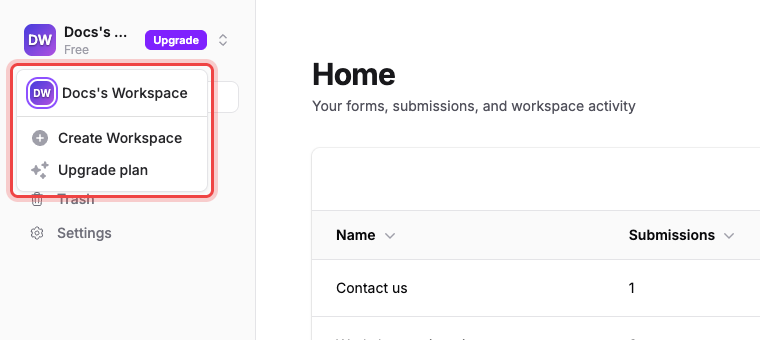
Maxforms remembers where you were, so next time you sign in you land in the workspace you used last. Every workspace has its own URL (the part after the domain is the workspace slug), so you can bookmark a workspace directly.
Create another workspace#
- Select the workspace name at the top of the sidebar.
- Select Create Workspace.
- Enter a Workspace Name.
- Adjust the Workspace URL if you don't want the one suggested from the name.
- Select Create Workspace.
You're switched into the new workspace straight away. It starts on the Free plan, with no forms and no members.
There's no limit on how many workspaces you can create, but you do have to verify your email address before creating a second one.
Rename a workspace or change its URL#
- Select Settings in the sidebar.
- Stay on the General tab.
- Edit Workspace Name, Workspace Slug, or both.
- Select Save Changes.
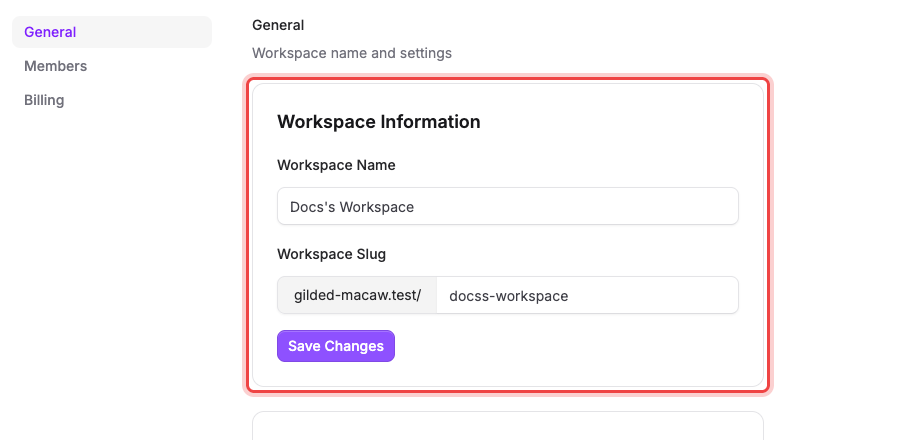
Changing the slug changes the workspace's URL immediately, and you're redirected to the new address. Old bookmarks to the workspace stop working, but your published forms are unaffected, because their public links don't contain the workspace slug.
Only the owner and admins can edit these. Editors and viewers see the same fields, filled in and read-only.
Add a workspace icon#
Below Workspace Information, the Workspace Icon card takes a PNG, JPEG, or WebP at 256×256 or larger. Square images render best. Until you upload one, Maxforms generates a gradient with the workspace initials. Select Save icon when you're done.
Leave a workspace#
If someone else owns the workspace, both the General and Members tabs end with a Leave workspace card. Select Leave workspace, then confirm. You lose access to every form and submission in it immediately.
The owner can't leave their own workspace. Hand it to someone else first: see Roles and what each one can do.
Delete a workspace#
Only the owner can do this, from Settings → General → Danger Zone.
- Select Delete Workspace.
- Type the workspace name exactly as shown to confirm.
- Select Schedule deletion.
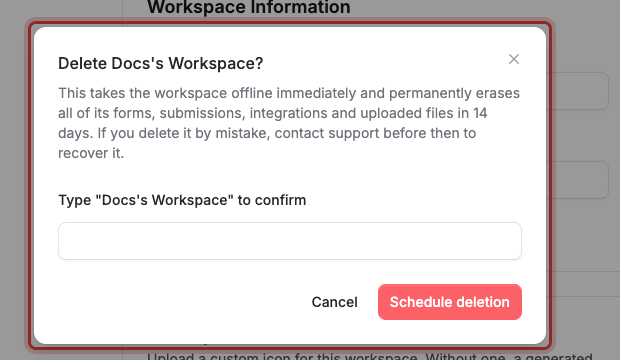
The workspace goes offline immediately: it disappears from your switcher, and its published forms stop accepting responses. Its forms, submissions, integrations, and uploaded files are then permanently erased 14 days later.
There's no undo button inside Maxforms. If you delete a workspace by mistake, email [email protected] before those 14 days are up and it can be brought back.
If the workspace has a paid subscription, it stays active through the grace period and is cancelled when the workspace is permanently deleted.
If a workspace vanished from your switcher#
Either it was deleted (by you or by its owner) or you were removed from it. Deleted workspaces are hidden the moment deletion is scheduled, so nothing appears in the list to tell you which. Ask the owner, or contact support if it was yours.
If the workspace URL you want isn't available#
You'll see This URL isn't available. Try another. That covers both "someone already has it" and "it's reserved by Maxforms": words like admin, api, and settings can't be used. Pick something more specific. URLs are 3–32 characters, lowercase letters, numbers, and hyphens only.