Use the booking email or customer portal to reschedule or cancel an upcoming appointment. The service's notice and cancellation rules determine the available result.
Your confirmation email has a Manage booking link that opens your booking without signing in. The management page also offers Add to calendar. If you cannot find the email, sign in to the portal with the address you booked with.
If you cannot sign in, then request fresh access#
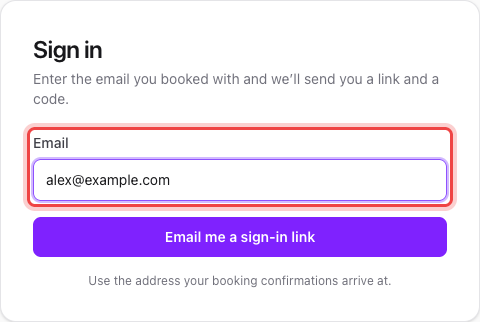
Open the business's portal sign-in page and select Email me a sign-in link after entering your booking email. Use the link or code from the new email within 15 minutes. Ask the business for its portal address if you cannot find it.
Reschedule#
- Open the Manage booking link from your booking email, or sign in to the portal.
- Select Reschedule.
- Choose an available time.
- Select Confirm new time.
Rescheduling cancels the old appointment and creates the new one. For a recurring appointment, it changes that appointment only and leaves the later series unchanged.
Cancel or skip#
For a one-time booking, select Cancel booking on its management page, or Cancel in the portal.
For a membership with a set number of sessions, select Cancel next to the session. The confirmation says whether the session goes back to your balance, which depends on the cancellation window.
For a fixed recurring membership, select Skip in the portal to skip only the appointment you cannot attend. From the email link, select Cancel booking; the next page offers the skip.
Before you confirm, you can give a reason, keep the booking, or select Reschedule instead.
Cancellation does not refund a payment or stop a subscription.
If the appointment can no longer be moved online, then contact the business#
The booking is inside its reschedule notice window. The business must decide what to do outside Maxforms self-service.