Everyone in a workspace has one of four roles: Owner, Admin, Editor, or Viewer. You pick a role when you invite someone and can change it later from Settings → Members. Every workspace has exactly one owner, and only the owner can touch billing or delete the workspace.
What each role can do#
| Owner | Admin | Editor | Viewer | |
|---|---|---|---|---|
| See forms and submissions | ✓ | ✓ | ✓ | ✓ |
| See workspace settings | ✓ | ✓ | ✓ | ✓ |
| Create and edit forms | ✓ | ✓ | ✓ | |
| Manage submissions (delete, rescue from spam) | ✓ | ✓ | ✓ | |
| Connect and disconnect integrations | ✓ | ✓ | ||
| Change workspace name, URL, and icon | ✓ | ✓ | ||
| Invite and remove members | ✓ | ✓ | ||
| Invite, promote, or remove admins | ✓ | |||
| Manage the plan and billing | ✓ | |||
| Refund a payment or approve a held one | ✓ | |||
| Transfer ownership | ✓ | |||
| Delete the workspace | ✓ |
Maxforms describes them the same way in the app, under the role dropdown:
- Owner: Full control of the workspace, including billing and ownership.
- Admin: Can manage forms, submissions, members, settings, and integrations. Cannot manage billing or transfer ownership.
- Editor: Can create and edit forms and manage submissions. Cannot manage members, settings, or integrations.
- Viewer: Can view forms and submissions, but cannot make any changes.
What a teammate actually sees#
An editor or viewer opening Settings finds only two tabs: General and Members. There's no Billing tab at all, the workspace name and URL are filled in but read-only, there's no Workspace Icon card and no Danger Zone. On Members they see who's in the workspace and what role each person has, as plain text, with no dropdowns, no … menu, and no Invite Member card.
Both tabs end with a Leave workspace card, which is the one thing they can act on.
Change someone's role#
- Select Settings in the sidebar.
- Open the Members tab.
- On the person's row, choose the new role from the dropdown.
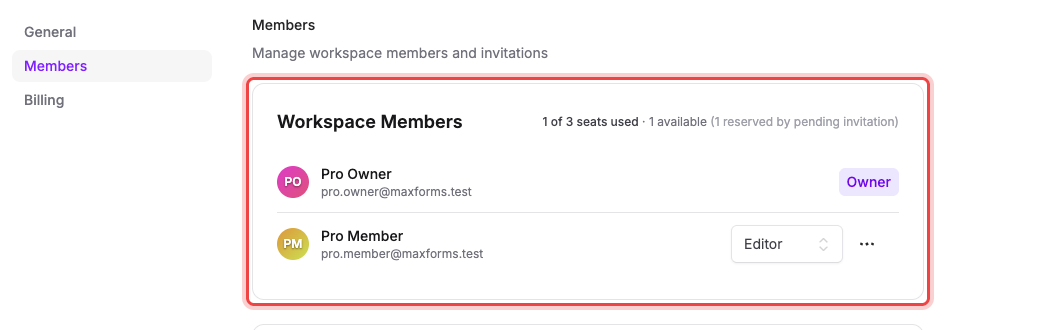
The change saves immediately and Maxforms confirms it: Jane is now Editor.
Admins can move people between Editor and Viewer. Only the owner sees Admin in the dropdown, and only the owner can change an existing admin's role.
Remove someone#
- On the person's row, select the … menu.
- Select Remove member.
- Select Remove to confirm.
They lose access to the workspace and everything in it right away. You can't remove yourself; use Leave workspace instead. Admins can't remove other admins.
Hand the workspace to someone else#
Ownership moves by invitation, and only to someone who's already a member.
- On the person's row, select the … menu.
- Select Transfer ownership.
- Confirm your password.
- Select Transfer ownership.
They get an email titled You've been asked to take ownership of…, with an Accept ownership button. The offer expires after 7 days. Until they accept, a Pending ownership transfer card sits on the Members page with a Cancel transfer button.
When they accept, they become the owner and take over billing and settings, and you become an admin. Both of you get an email confirming it.
If a teammate can't see the Billing tab#
That's expected on every role except owner. Billing is owner-only: admins can do everything else, but not the plan, the payment method, or invoices. If they need it, transfer ownership.
If you can't change someone's role#
Two reasons. Either you're an admin and they're an admin (only the owner can change another admin), or you're an editor or viewer, who don't get the dropdown at all.
If you're out of seats#
The Invite Member card is disabled and the members list shows how many seats you've used. Removing someone frees their seat immediately. See Invite someone to your workspace.