Create a form in three ways: describe it and let AI draft it, start from a template, or start blank. All three live on your workspace Home screen, and each ends in the same builder where you shape the form.
Pick a starting point#
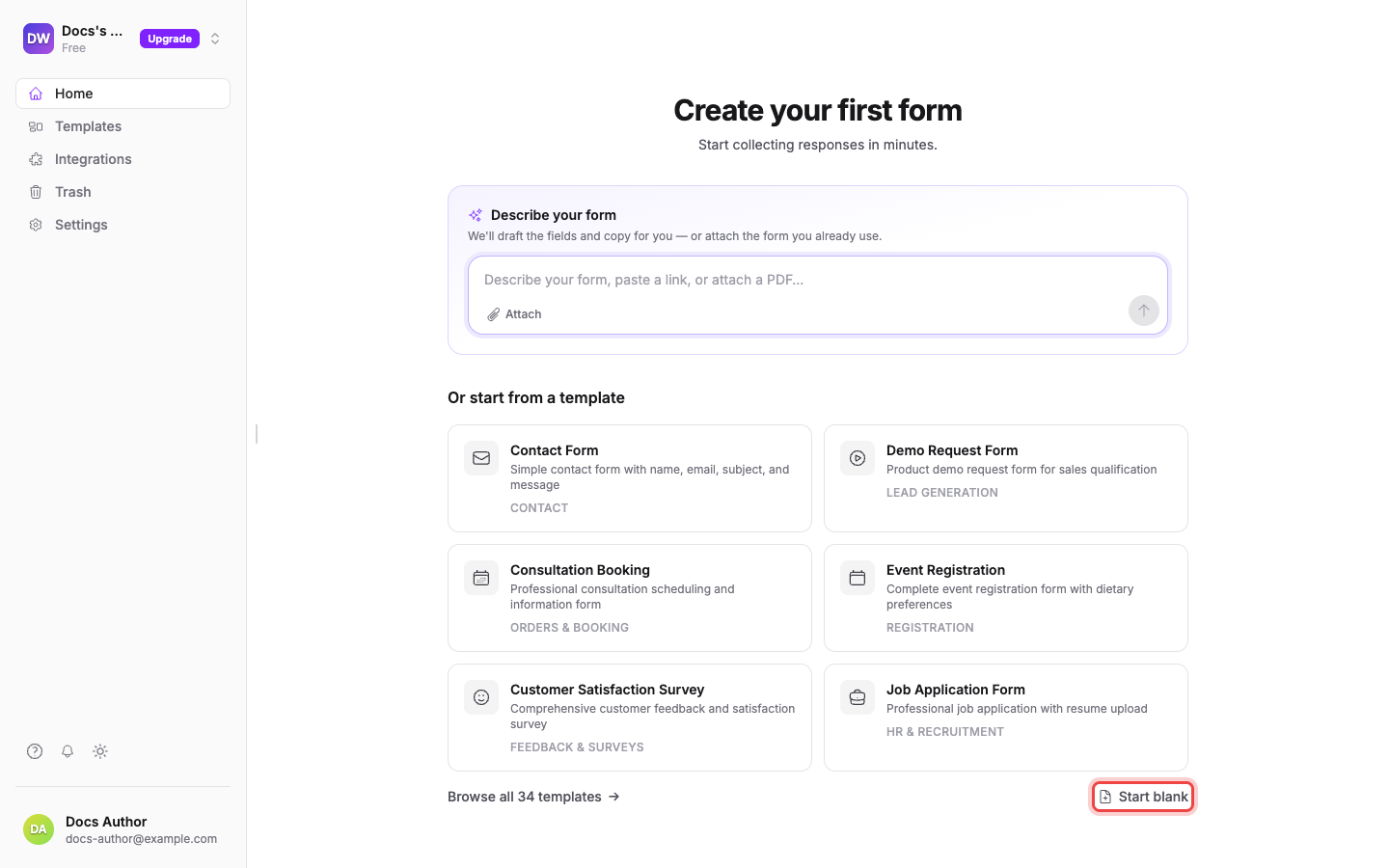
When your workspace is new, Home greets you with Create your first form and three paths:
- Describe your form: type what you need (or attach a PDF of a form you already use) and select Generate form. AI drafts the fields and copy for you.
- Or start from a template: pick a ready-made form like Contact Form or Event Registration, or select Browse all N templates (the link is labeled with the current template count) for the full gallery.
- Start blank: build the form yourself, field by field. The rest of this guide takes this path.
Start blank#
- On Home, select Start blank.
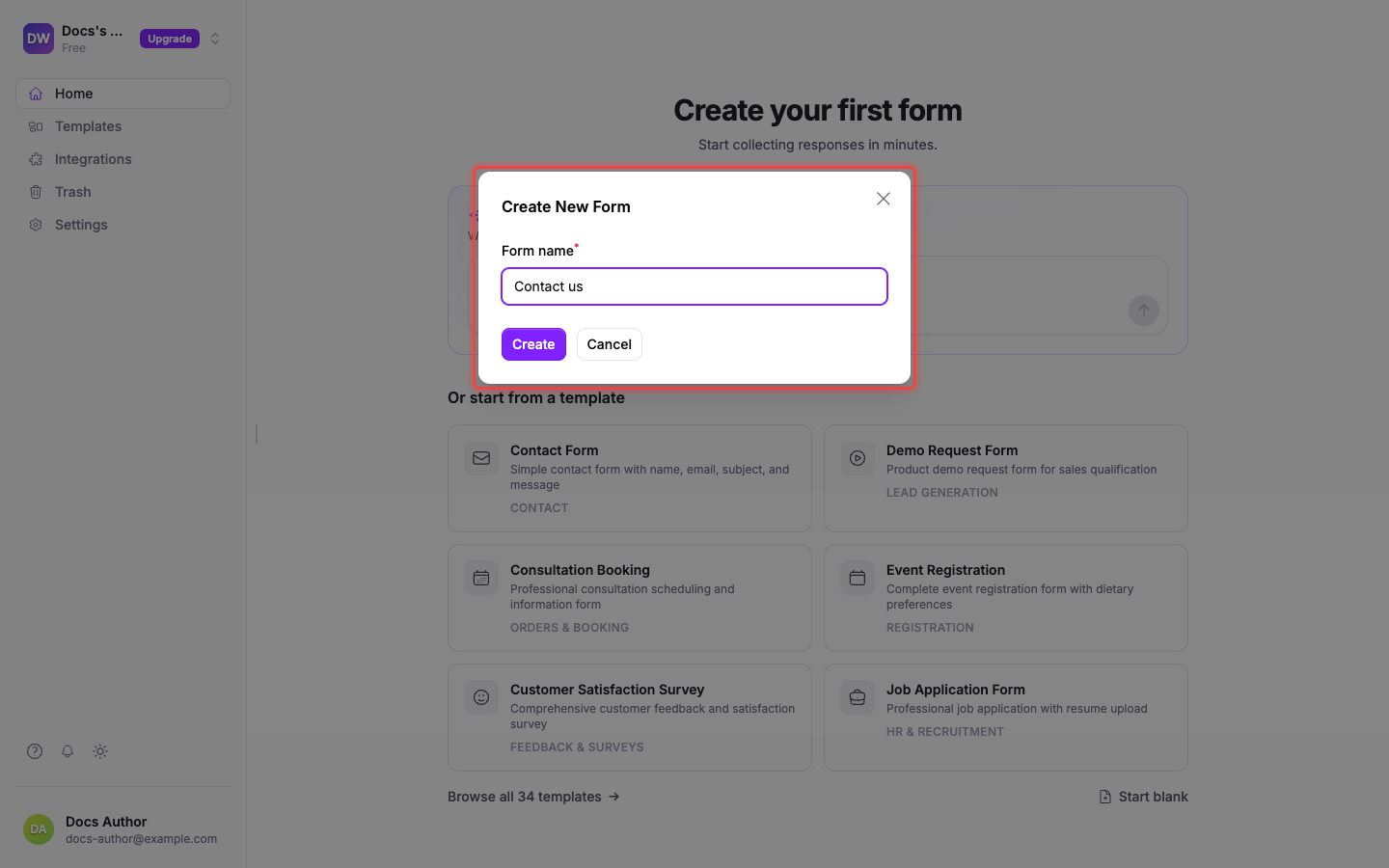
- In the Create New Form dialog, enter a Form name: this is the title your respondents will see.
- Select Create.
Your form opens in the builder with no fields yet: the left side shows a live preview of what respondents will see, and the right side is where you add and manage fields. Next, add your questions: see Add and arrange fields.
If you don't see "Create your first form" on Home#
Your workspace already has at least one form, so Home shows your forms list instead. Select Create Form: it asks What kind of form do you need?, where you can describe the form, pick a suggestion, or select Start from scratch to open the same Create New Form dialog.