Every form you create already emails you when a response comes in: you don't have to switch anything on. To change who gets that email, or to swap it for a daily or weekly summary, open the form's Settings tab and scroll to Submission notification.
Who gets the email by default#
The person who created the form. Their address is filled into the To field automatically, and the notification is switched on.
Change the recipients#
- Open your form and select the Settings tab.
- Scroll to Submission notification.
- In To, enter the addresses that should be notified. Separate several with commas.
- Select Save changes.
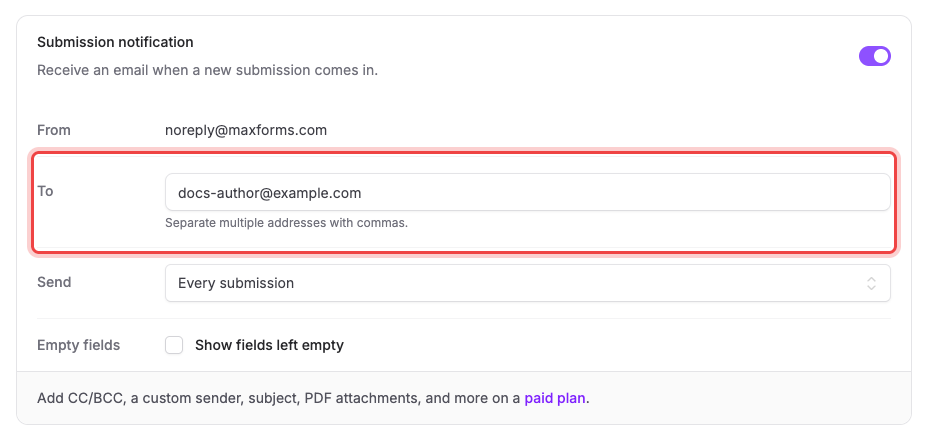
The switch at the top-right of the card turns notifications off entirely. From shows the address the email is sent from, and that one is fixed. To accepts up to 10 addresses on every plan.
Route notifications with logic rules#
On plans that include conditional notification routing, a Logic rule can send the submission notification to different recipients based on an answer, instead of always using the fixed To list. Build the rule under THEN with the Send notification to action, in the form's Logic tab. See Show or hide fields with conditional logic.
When routing rules match, on the Submission notification card, decides what a matching rule does to the To list:
- Replace the To list with matched recipients (CC/BCC still receive a copy) sends only to the rule's recipients.
- Add matched recipients to the To list sends to the rule's recipients as well as the ones already in To.
Routing rules only fire while Submission notification itself is switched on for the form.
Get a summary instead of every response#
Busy forms don't need one email per response. In Send, choose:
- Every submission: one email per response, as it arrives.
- Daily digest: one email a day with everything that came in.
- Weekly digest: one email a week.
Digests list the recent responses and link straight to the form's Submissions tab.
What's in the email#
The form name, the submission number, the date, and every answer as a label-and-value pair, plus a View submission button that opens the response in Maxforms.
By default, questions that were left blank are skipped. Tick Show fields left empty if you'd rather see them listed with a dash, so the email always has the same shape.
Partial submissions never trigger a notification: only completed responses do.
Reply to the person who filled in the form#
Respondent confirmation, just below, sends an automatic thank-you to the address someone entered on the form.

This one is a paid-plan feature. On the Free plan the card is visible but locked. On a paid plan you pick which field holds the respondent's email, then write the subject and body.
Customise the notification#
On a paid plan the same card gains From name, Reply-to, CC, BCC, a custom Subject, a custom Message, and Attach PDF, which sends a PDF copy of the response with the email. Subject and message support merge tags such as {form_name} and {date}, inserted from a picker so you don't have to remember them. On the Free plan those rows are hidden and the card ends with a line pointing at the paid plans.
Send one notification again#
If someone missed an email, resend it from the response itself.
- Open the form's Submissions tab.
- On the row you want, open the Actions menu.
- Select Resend admin email.
- Confirm or edit the recipients, then select Resend email.
This works even when notifications are switched off for the form.
To send the respondent their thank-you again, select Resend user email instead, then confirm. It goes to the address on that response, using your current confirmation settings. The option appears only when respondent confirmation is switched on and the response carries a valid email address.
If you're not receiving the emails#
Work through these in order:
- Check your spam or junk folder, then add the sending address shown in From to your contacts so future ones land in the inbox.
- Check the To field. If someone edited it, your address may no longer be there. Notifications go only to the addresses listed.
- Check the switch at the top of the Submission notification card is on, and that Send isn't set to a digest you're not expecting yet.
- Check you didn't unsubscribe. Every notification carries an unsubscribe link. If it was clicked (even accidentally, and even by a mail client that follows links automatically), Maxforms stops sending to that address and there's no way to undo it yourself. Email [email protected] to have it restored.
- Check the address still accepts mail. If your mail server bounced a Maxforms email or reported one as spam, sending to that address stops for the same reason. Contact support to clear it.
If a response is in the Submissions tab but no email arrived, the form worked. The problem is delivery, so start at step 4.
If you get a monthly email allowance warning#
When your workspace has used most of its monthly notification-email allowance, the workspace owner gets a heads-up (an email and a notification in the bell menu) at 80% and again when the allowance is used up.
It's a warning, not a cut-off: notifications keep sending. Upgrade if you expect to keep that volume up.