Public payment forms attract card-testing bots: scripts that run stolen card numbers through any open checkout to see which ones still work. Maxforms filters spam submissions on its side, but the strongest defense for the payment itself is Authorize.net's own fraud tooling, which ships free with every account as the Advanced Fraud Detection Suite.
All of the settings below live in the Authorize.net Merchant Interface under Account > Account and API Settings > Advanced Fraud Detection Suite Settings. A transaction a filter holds or declines never charges the card, and Maxforms tracks the outcome automatically. When Authorize.net holds a payment for review, the submission's payment shows the hold, and it settles or fails once you approve or decline it, whether from Maxforms or the Merchant Interface.
Hourly Velocity Filter#
Caps how many transactions your account accepts per hour. Legitimate forms rarely take more than a few payments a minute, while a card-testing run fires hundreds. Set a threshold comfortably above your real peak (50 per hour is a sane starting point for most forms) and set the action to decline:
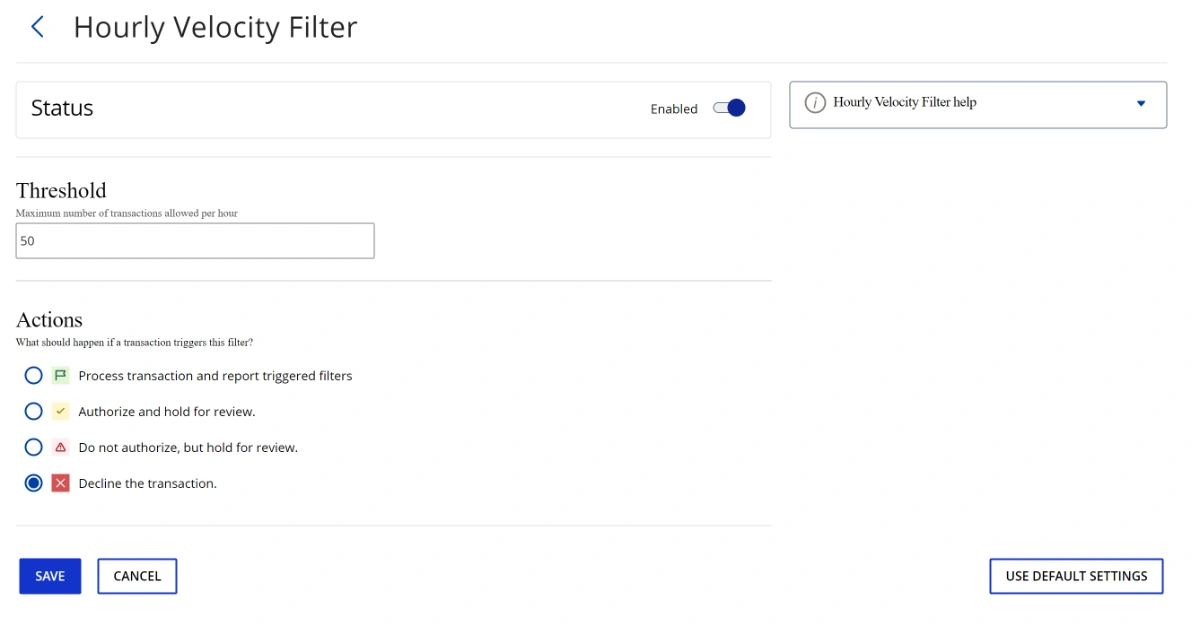
If you run high-volume campaigns, raise the threshold before launch day rather than turning the filter off.
Transaction IP Velocity Filter#
Caps how many attempts a single IP address can make per hour. Bots usually hammer from one address; real respondents almost never need more than a couple of tries. A threshold of 3 per hour with the decline action stops repeat attempts cold:
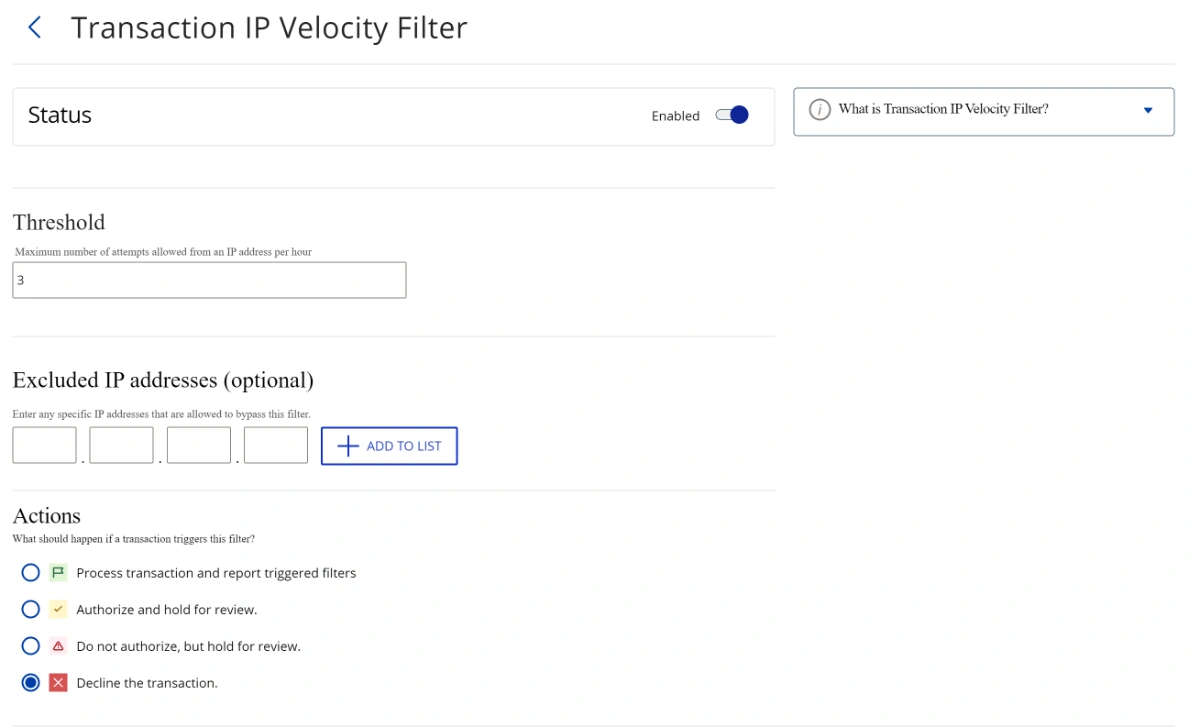
Authorize.net only applies this filter to transactions that carry the respondent's IP address, and Maxforms sends it whenever the respondent has a usable one. Three caveats:
- Testing your own form counts. Four attempts from your desk inside an hour and every further payment fails with This payment could not be completed (failure code
authorizenet:3:251on the submission's payment). Raise the threshold before a test run, or add your own IP to Excluded IP addresses. - If many respondents share one network (a campus, an office, an event venue), raise the threshold or add that network to Excluded IP addresses.
- If your staff enter card payments on behalf of customers, exclude your office IP so the filter never blocks them.
Enhanced AVS Handling Filter#
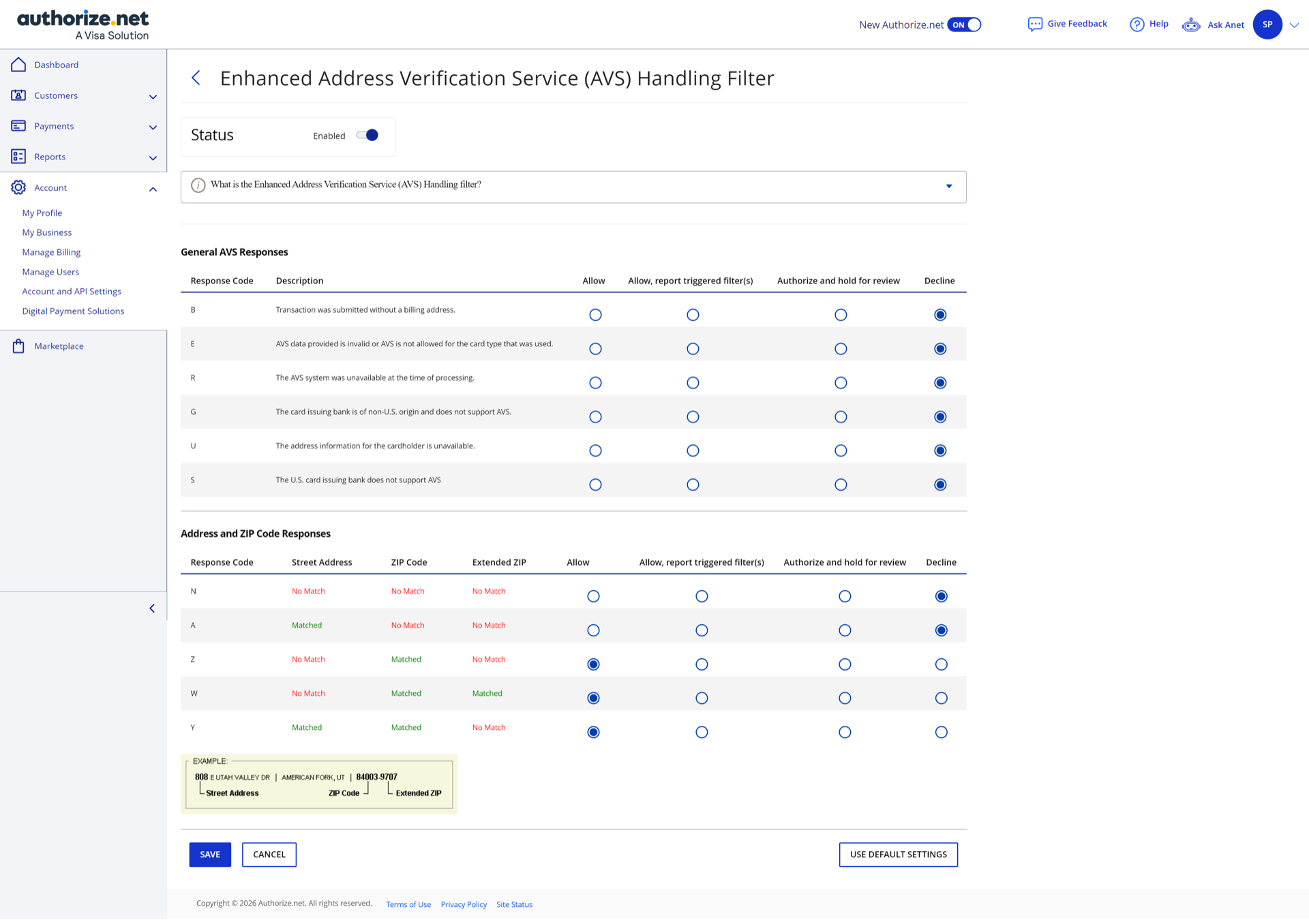
The Address Verification Service compares the billing address on the transaction with what the card issuer has on file. Maxforms sends the billing ZIP code with every charge (respondents enter it in the payment field), but not a street address, so configure the rows accordingly:
- Decline the full no-match rows (N, and A if you want to be strict): a wrong ZIP is the classic sign of a stolen card number.
- Leave the rows where the ZIP matched (Z, W, Y) on Allow: the street column can never match because it is not submitted, and declining on it would block every legitimate payment.
Enhanced CCV Handling Filter#
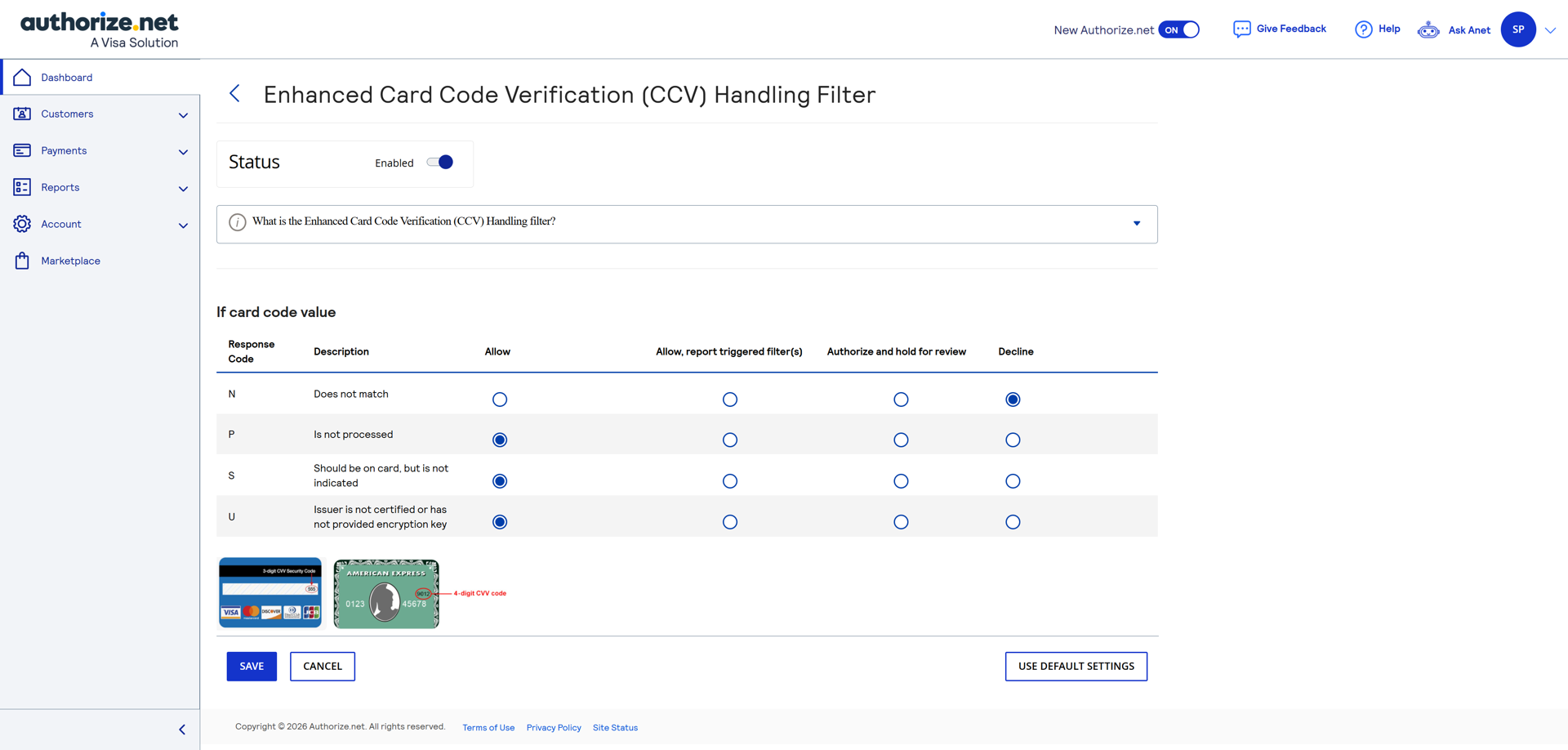
The card code (CVV) is required in the Maxforms payment field, so every charge carries one. Set the Does not match (N) row to decline; a wrong CVV on a correct card number is card testing almost every time. Leave the "not processed" and "not indicated" rows on Allow so issuer quirks don't block real payments:
Optional: Regional IP Address Filter#
If your forms only serve one region, you can additionally block or hold transactions originating from IP ranges outside it. Skip this if you have any international respondents.
After a filter triggers#
Held transactions appear in the Merchant Interface for review; declined ones are rejected outright. Either way, Authorize.net notifies Maxforms, so the payment status on the submission stays accurate without any manual reconciliation on your side.
Approving or declining a hold in Maxforms#
A held charge shows as On hold in your form's Submissions list. Choose Approve payment or Decline payment from the row actions or from the footer of the submission itself, and we send that decision to Authorize.net for you. Only the workspace owner sees these actions. The status updates as soon as Authorize.net confirms the decision, usually within seconds.
Two things worth knowing:
- Approving is not the same as being paid. If your filter was set to Do not authorize and hold, the card was never authorized, so approving runs the authorization now and it can still decline.
- A hold that nobody acts on expires on its own and can no longer be settled. That's 5 days after submittal if your filter was set to Do not authorize and hold, or 30 days if it was set to Authorize and hold.
You can still approve or decline in the Authorize.net Merchant Interface instead.