Your name, email and password live under your avatar menu, in Account Settings. Changing the email sends a confirmation link to the new address; nothing switches until you open it.
Change your email address#
- Select your avatar, then select Account Settings.
- Under Email, select Change email.
- Enter the New email address.
- Select Send confirmation email.
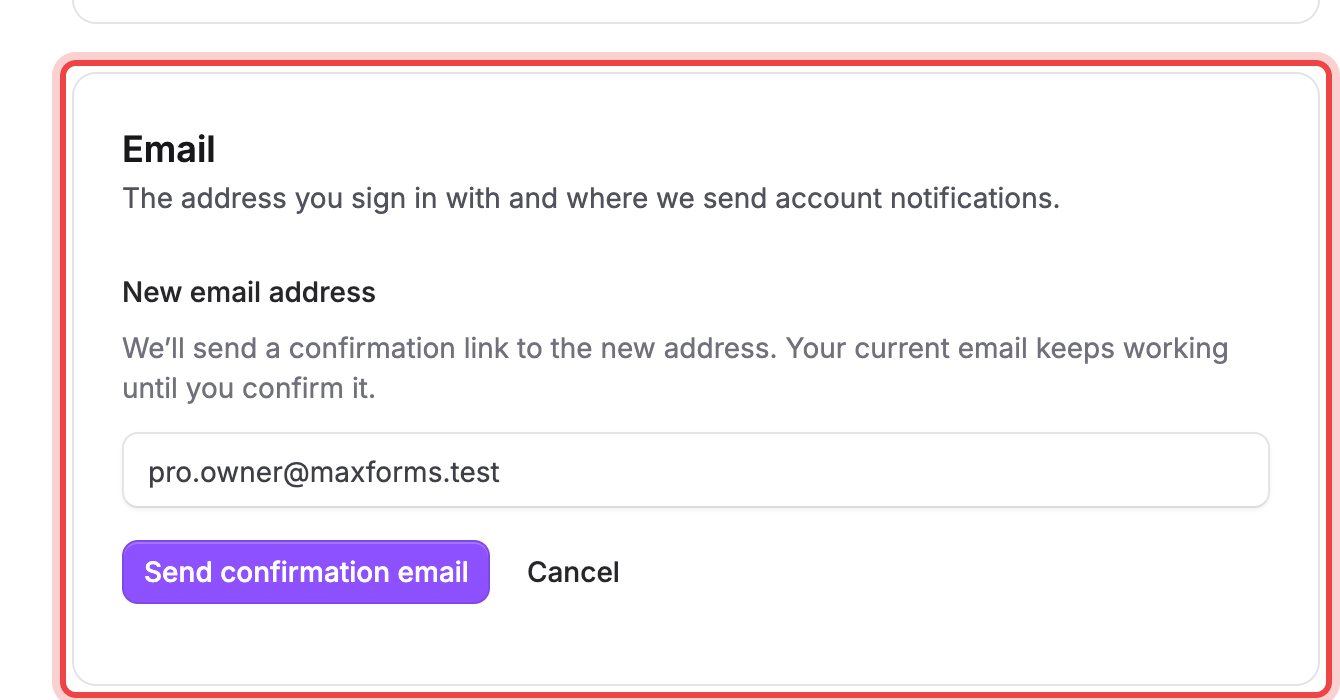
Maxforms emails a confirmation link to the new address and a heads-up to your current one, so you'll notice if someone else tries to change it. Your current email keeps signing you in until you follow the link. While the change is pending, the Email card shows a Cancel change button in case you typed the wrong address.
Update your password#
- Select your avatar, then select Password.
- If you already have a password, enter it under Current password.
- Enter your New password and repeat it under Confirm password.
- Select Save.
If you signed up with Google, Microsoft, or a passkey and have never set a password, this page reads Set password instead, with no current-password field. Setting one gives you a way to sign in with email even if you disconnect a social account later.
If Maxforms asks you to confirm it's you#
Changing your email is sensitive enough that Maxforms checks your identity first when you haven't signed in recently. The dialog offers whichever applies to your account: your current password, a passkey, or a 6-digit code emailed to your current address. Confirm with any of them and the email change goes through.
If your email shows an Unverified badge, then the change is instant#
An unverified address hasn't proven it belongs to you, so there's no confirmation link to send. Entering a new one replaces it right away, no email required.
If the confirmation link never arrives#
- Check the new address you typed for a mistake, the most common cause.
- Check spam or junk folders.
- Select Change email again, then Send confirmation email to send a fresh link.