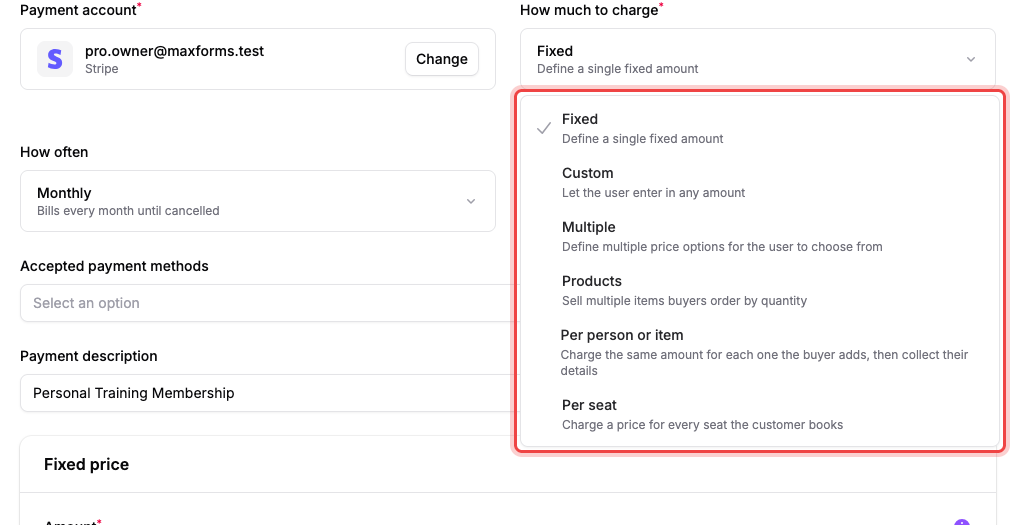
How much to charge on a Payment field has six modes: Fixed, Custom (the payer types an amount), Multiple (they pick one option), Products (they pick several with quantities), Per person or item (a quantity times a price), and Per seat (one price for every seat booked on the form's Appointment Booking field; the customer chooses how many seats there, see Sell tickets per time slot). Coupons and an optional fee apply on top.
Charge a single fixed amount#
- Open Advanced edit for your Payment field.
- Under How much to charge, choose Fixed.
- Under Fixed price, enter the Amount.
Let the payer type their own amount#
Choose Custom to let the payer enter any amount themselves, useful for donations or pay-what-you-want pricing. There's no amount to set here: the field has nothing to configure beyond the Payment description shown above the payer's amount box.
Offer a few preset prices#
Choose Multiple to let the payer pick one option from a list you define. Under Price options, give each row a Label and an Amount, and select Add option to add more.
Sell products with quantities#
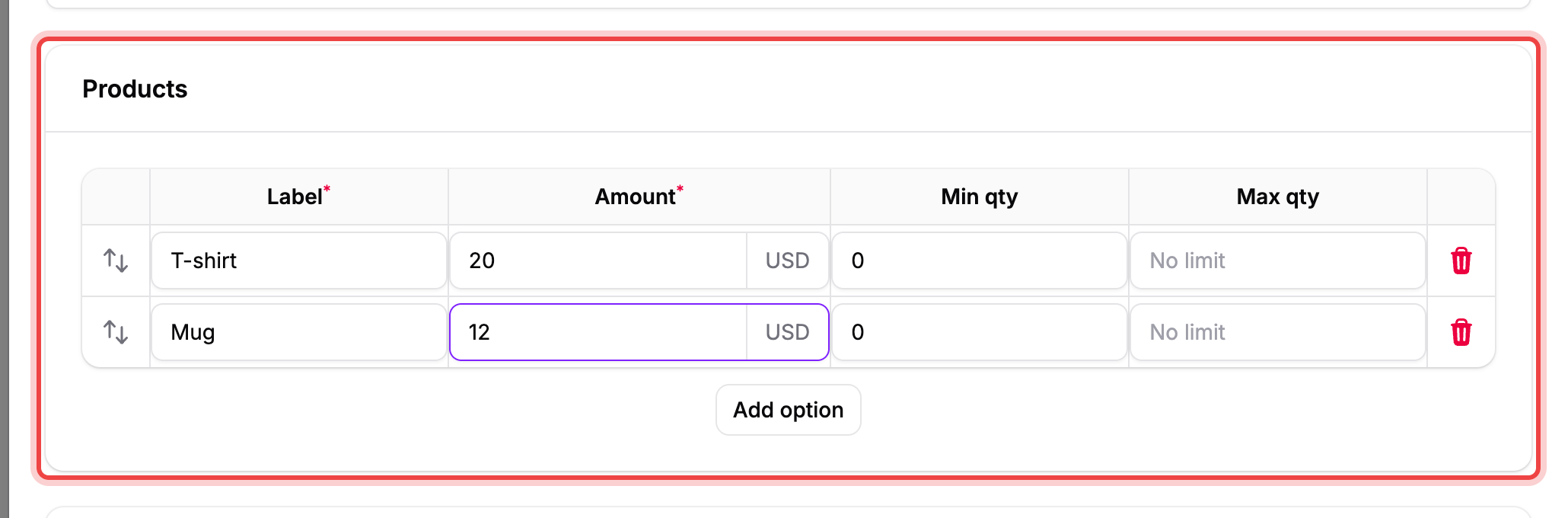
Choose Products to let the payer order several items by quantity, like a small storefront on the field. Under Products, give each row a Label and an Amount, and optionally limit it with Min qty and Max qty. Select Add option to add more items.
Charge per person or item#
Choose Per person or item to charge the same amount for each one the payer adds, then collect details for each. Under Per-unit price, set the Amount per unit, the Name for each one (the noun payers see, such as "Person" or "Ticket"), and optionally a Maximum per submission. Under Details collected for each one, add the fields the payer fills in for every one they include.
Add a discount code#
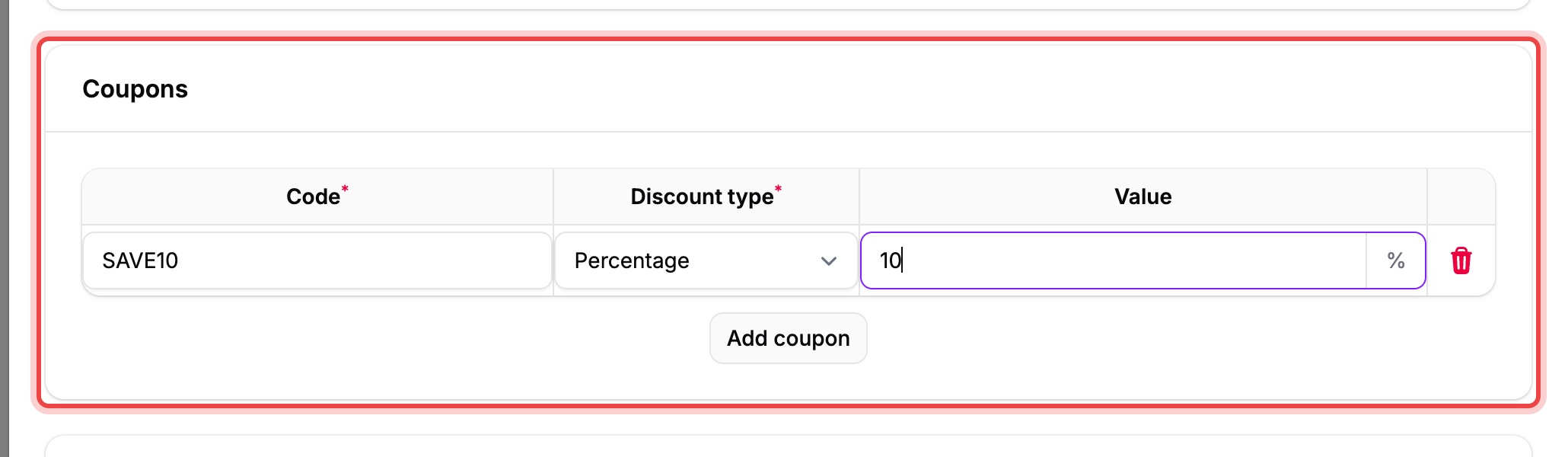
- Under Coupons, select Add coupon.
- Enter the Code the payer will type in.
- Choose a Discount type: Percentage, Fixed, or Free.
- For Percentage or Fixed, enter the Value. Free has no value to set: it discounts the full amount.
A code matches regardless of capitalization or extra spaces around it, so SAVE10, save10, and save10 all apply the same coupon.
If Services is on for your workspace and this field bills on a recurring schedule, Free isn't offered as a discount type, since a 100% discount would create a subscription that charges nothing.
On the published form, the payer selects Add discount code to reveal the code box.
Pass your processing fee to the payer#
- Under Fees, turn on Enable fee.
- Select Add Fee.
- Give the fee a Label (what the payer sees on checkout), a Type (Percentage or Fixed), and an Amount.
- Leave Show fee label to user on to break the fee out as its own line on checkout, or turn it off to fold it into the total silently.
If the total is wrong, then check quantities and the coupon#
- On Products or Per person or item, confirm the quantities the payer entered match what you expected; the total is quantity times price per row.
- If the payer sees Invalid discount code. under the code box, compare it against the exact Code you set: matching ignores case and spaces, so a message that stays after correcting those means the payer typed a genuinely different code. The code is checked again at submit, so it can't slip through misspelled.
- A Percentage coupon set to 100% discounts the price to zero but leaves an enabled fee in place. Only a Free coupon zeroes both the price and the fee.