Maxforms doesn't have a one-click "export to CSV" button. Instead you connect your form to somewhere your data should live, such as a Google Sheet, a Zap, or your own endpoint, and every new response is written there as it arrives. For one-off needs you can download a single submission as a PDF, and any file someone uploaded directly from the table.
Send every response to a spreadsheet#
The Google Sheets integration is the closest thing to a running export: each new submission is appended to a sheet as a row.
Connect it once from the form's Integrate tab; the steps, the column order, and what to do when the sheet stops filling are in Send submissions to a Google Sheet.
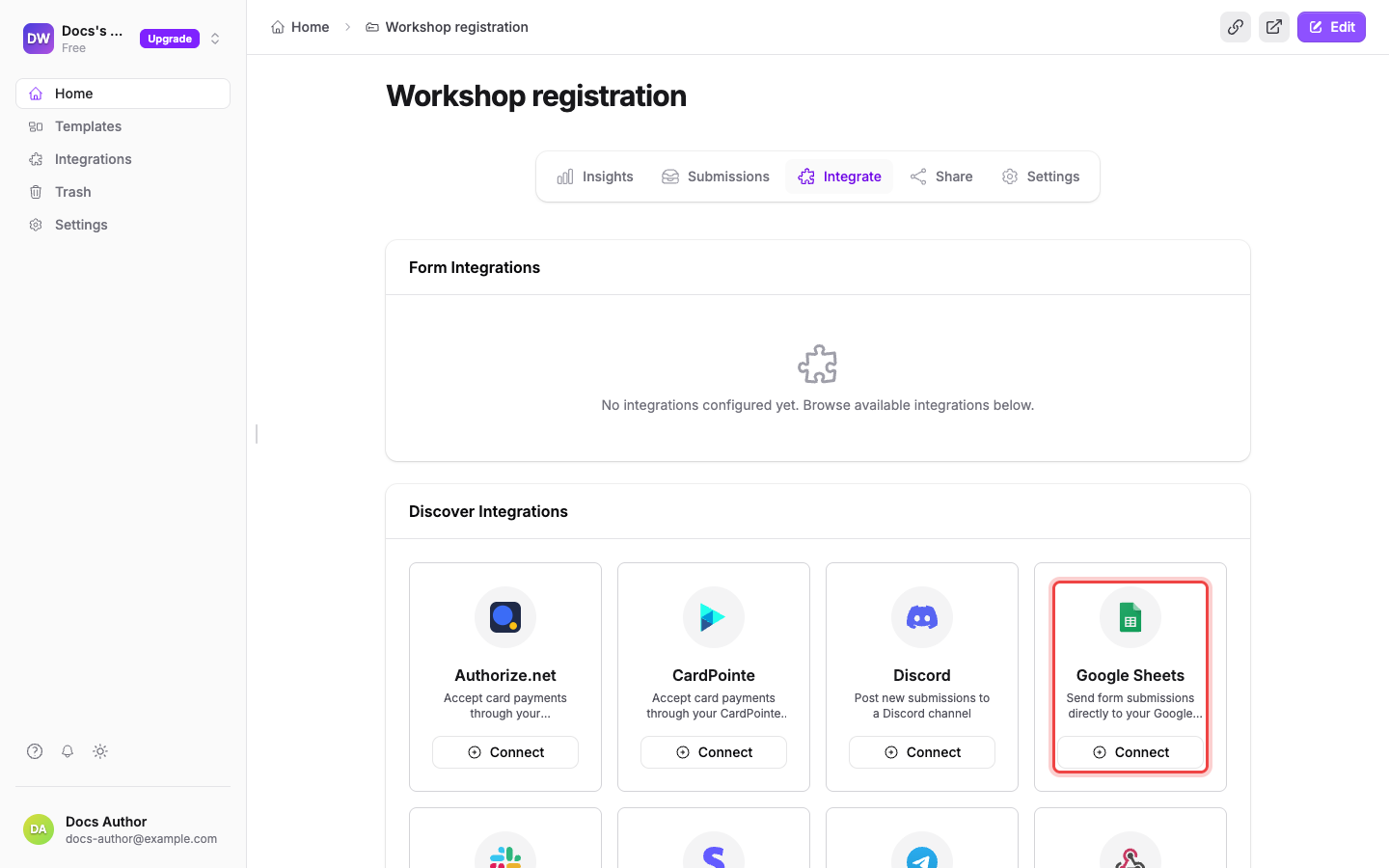
From then on the sheet fills itself, and you can download it from Google as .csv or .xlsx whenever you want. It starts from the moment you connect it: responses already sitting in your Inbox aren't copied across, so connect the integration before you start collecting if you want a complete spreadsheet.
Push responses anywhere else#
The same Integrate tab has three more ways out, and you can run several at once:
- Zapier: trigger a Zap on every new submission and let it write to Airtable, a CRM, a database, or whatever else you already use.
- Webhook: post the submission to any HTTP endpoint you control, with signature verification so you can prove it came from Maxforms.
- Slack: post each response into a channel your team already reads.
Developers can go straight to Webhooks for the payload shape and signature verification, or the API overview for OAuth scopes.
Download one submission as a PDF#
For a single response, such as an application to forward or a signed agreement to file, open it and take the PDF.
- Open the Submissions tab.
- Select a row's number in the # column, or choose View from its Actions menu.
- Select Download PDF at the bottom of the panel.
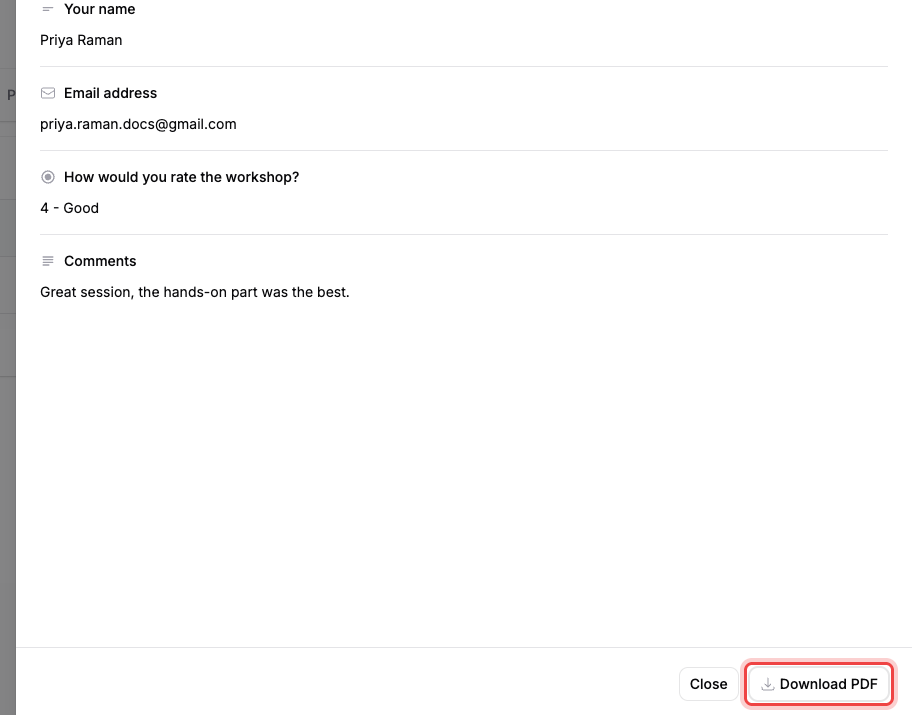
The PDF opens in a new tab and holds that one submission's questions and answers. Download PDF is a Pro feature: on the Free plan the button isn't in the panel at all.
Save the files people uploaded#
Uploaded files stay in Maxforms and you download them one at a time. In the submissions table, an upload shows as its filename with a download icon; select it to save the file. The same link is in the submission's detail panel.
If you're looking for a CSV or Excel download#
There isn't one today, and nothing in the table's toolbar or bulk actions will produce one: the toolbar has Search, filters, and the column manager, and selecting rows only offers Delete selected (plus Not spam on the Spam tab). Connect the Google Sheets integration and export from Google instead; that gives you the same columns in a file you can open in Excel or Numbers.