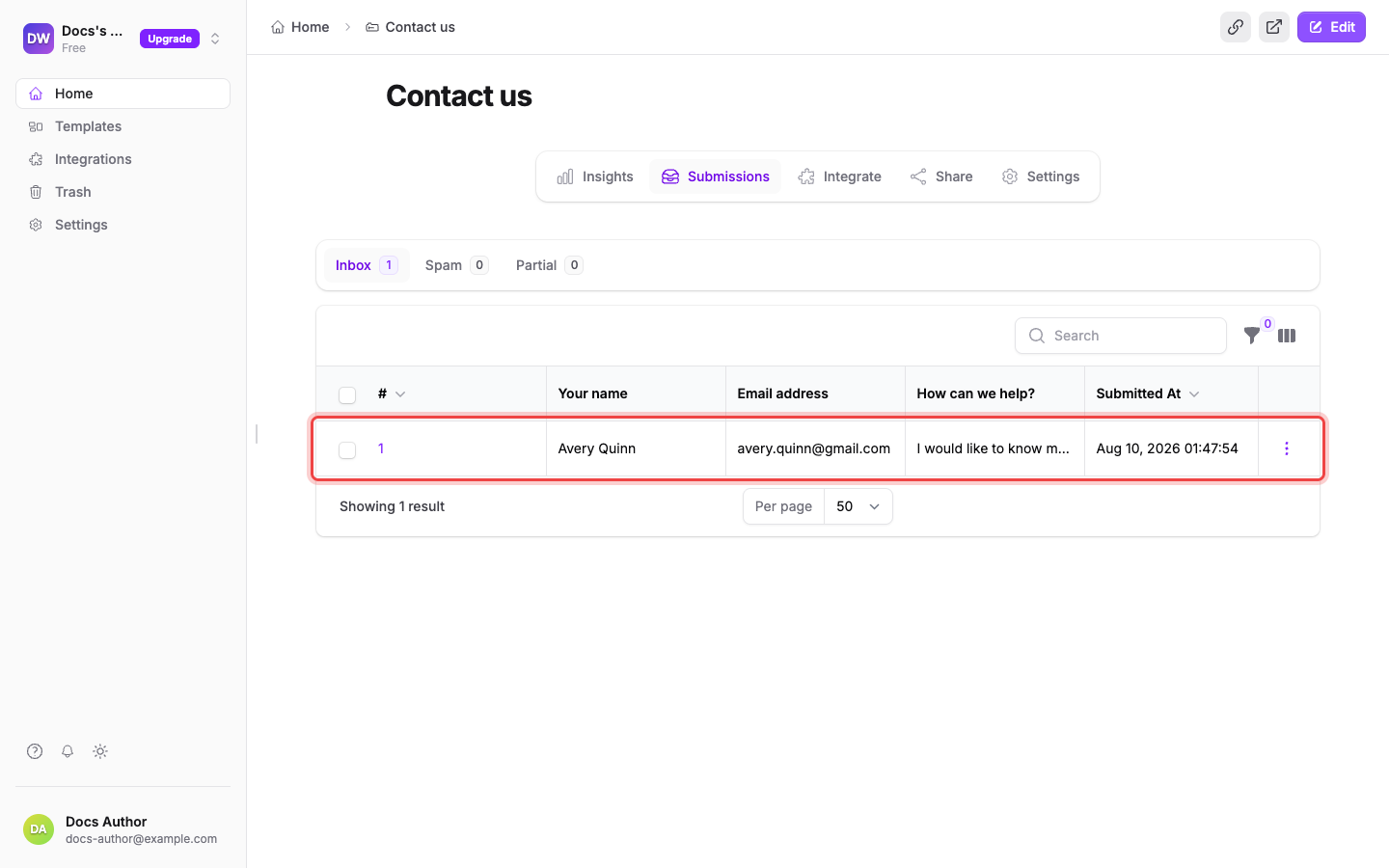
Open your form and select the Submissions tab: every response lands in its Inbox, one row per submission with a column for each of your fields. You also get an email for each new submission, so you don't have to keep the page open.
Browse the inbox#
The Submissions tab sorts responses into folders. Inbox holds the ones you actually received. Incomplete holds responses that never finished, most often a card that was declined or a checkout nobody came back to. Spam holds what the spam filter caught, and Partial holds answers people started typing but never submitted. A folder only appears in the row when it has something in it; the rest sit behind More. Use the search box to find a response by its content, and the filter and column controls to shape the table.
Open a submission#
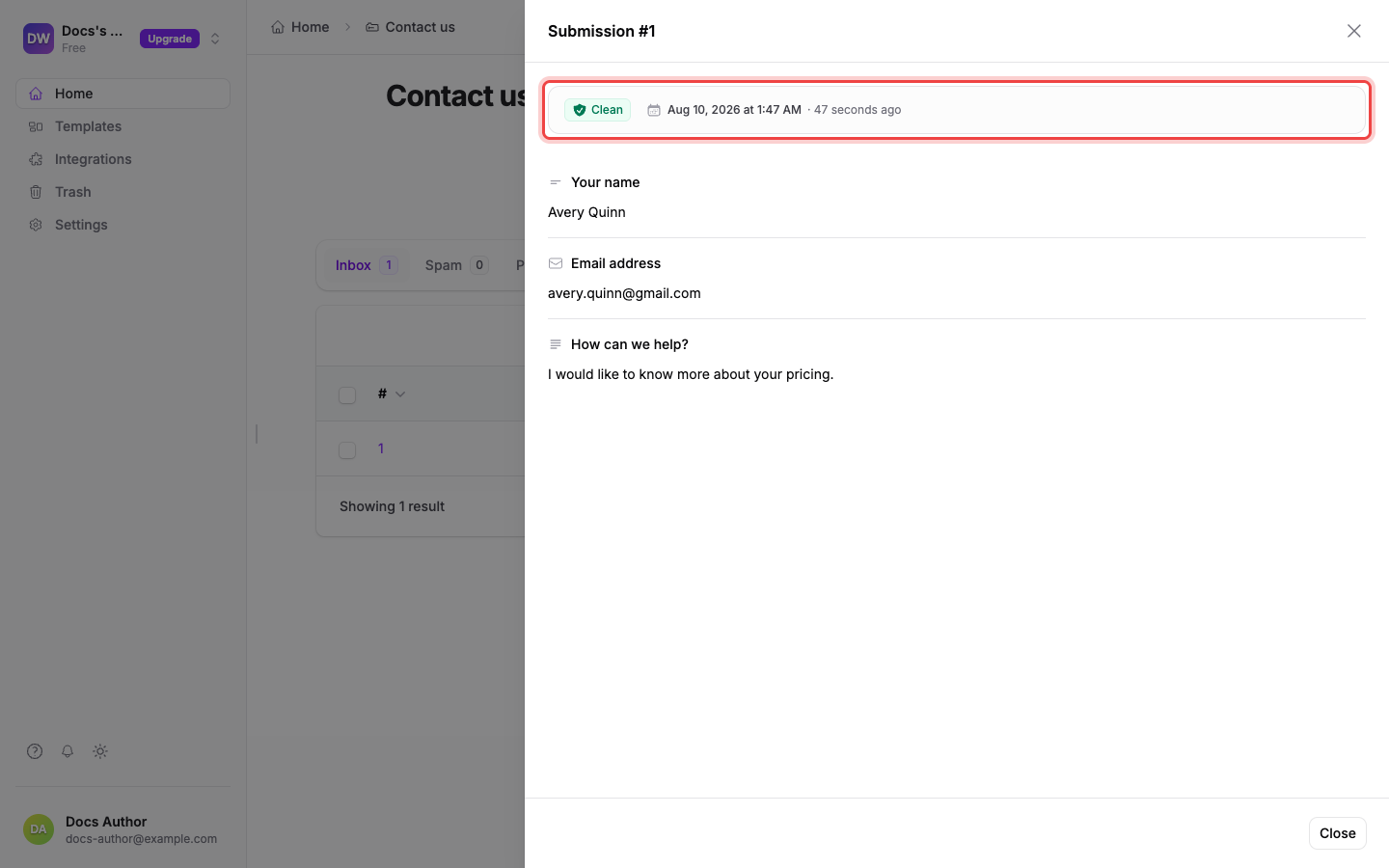
Select a row's number in the # column to open the full submission. The detail view shows the spam check result, when it was submitted, and every answer.
Each row's Actions menu offers View, Copy link, Resend admin email, and Delete. When respondent confirmation is switched on for the form, Resend user email appears too.
Opening a submission also puts its link in your browser's address bar, so you can bookmark it or hand it to a teammate who has access to this workspace; closing the submission clears the address again. See Share a link to a submission for how a link finds its way to the right tab, including an incomplete, spam, or partial response.
See how your form performs#
The Insights tab next to Submissions breaks down your form's traffic: Answers, Visits, and Drop-offs over a date range you pick.
If your submission isn't in the Inbox#
Check Incomplete first. A response that asked for payment stays there until the money clears, and one whose card was declined stays there for good. So does a response carrying a file that is still being scanned. Nothing in that folder sent you an email, ran your integrations, or counted against your plan.
Then check Spam: the filter moves suspicious submissions there instead of the Inbox, and they don't count toward your response limit either. If the response is in neither, the respondent may never have pressed Submit: unfinished answers appear under Partial when partial capture is enabled on your plan.