Set availability on each Appointment Booking field. Customers see only times inside your hours, your seasons and special dates, your booking window, and remaining capacity.
Your workspace needs Services access before you use this setup.
Add a required Email field before configuring customer identity. Keep that field visible for every customer.
Add the field#
- Open the form builder.
- Select Add field.
- Add Appointment Booking.
- Open Advanced edit for that field, then select the Schedule tab.
Set your hours#
- Choose the service Timezone. A new field starts in your workspace's booking timezone, or in your browser's timezone when the workspace has none.
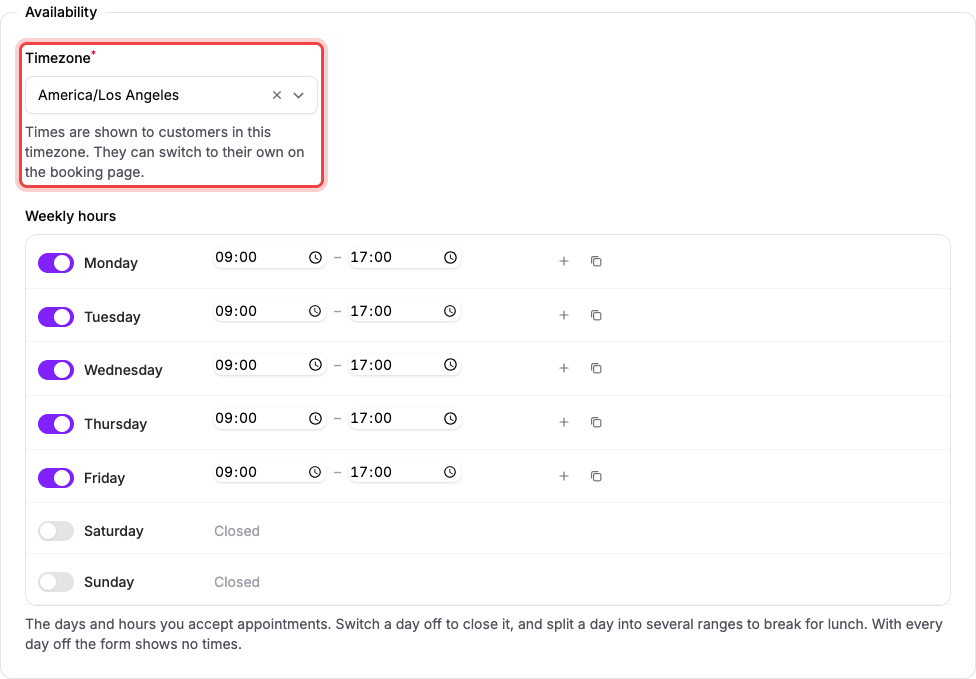
- Set Weekly hours for each open day.
On a new, untouched field, Start with offers presets. A preset is only a starting point: once you change a setting it chose, the card clears. Choose Specific dates to skip weekly hours and open only the dates you add under Special dates. Weekly hours fold away under Show weekly hours. Seasonal removes the limit on how far ahead customers can book, so customers can book your whole season as soon as you publish.
Choose when it runs#
- Under When does it run?, keep Every week for a service that runs all year.
- Choose Only during seasons, select Add a season, then pick the first and last day. Add more seasons the same way; they cannot overlap. Select a season's dates to change them. Your weekly hours apply only inside your seasons. For example, a holiday event can run November 27 to December 20. A school program can run three seasons: March, September to October, and December.
Add special dates#
- In Special dates, select Add a date, then pick the first and last day. For one day, select the same day twice.
- Keep it Closed, or choose Open and set its hours. For a second range on the same day, for example around a lunch break, add the same date again with the other hours.
A special date replaces the weekly hours for that day, even outside your seasons.
Set slot length on the Time slots tab#
- Choose an Appointment length chip, or select Custom for your own length.
- Set Buffer and Seats per time slot.
- Set Max party size.
- Fill in the Booking window sentence: how many days ahead, minimum notice in hours, and how far ahead. Choose with no limit in the sentence to remove the latest-day limit.
- Check the Next open day preview to confirm your settings produce bookable times.
Finish on the Policies tab#
- Under Customer identity, select the required email field for Customer email.
- Select Save changes, then publish the form.
The strip at the top of Schedule, Time slots and Booking page shows what your settings produce. Select it to open the full summary, where each warning has a button that fixes it. A tab with a warning shows a dot.
Set working hours in your business timezone. Customers see times in their own timezone, labelled with yours. On the booking page, Change switches between the customer's timezone and yours.
Set Show times in to your zone only (shown as "Central Time only", for example) to show every customer your timezone. The booking page then hides Change.
Turn a day off when you never accept appointments that day. Use more than one time range when you need a break between working periods.
For a lunch break, use separate ranges such as 9:00 AM to 12:00 PM and 1:00 PM to 5:00 PM.
| Setting | What it controls | Example |
|---|---|---|
| Appointment length | How long the appointment lasts | 60 minutes for a lesson |
| Buffer | Extra time before the next appointment can start | 15 minutes between lessons |
| Minimum notice | How many hours ahead a customer must book | 24 hours to prepare |
| Booking window, earliest day | How many days ahead the booking window starts | 0 allows today, subject to notice |
| Booking window, latest day | How many days ahead customers may book, when the sentence says and up to | 60 limits advance bookings to about two months |
| Seasons | The only dates weekly hours apply | Nov 27 to Dec 20 for a holiday event |
| Special dates | Dates that are closed or have their own hours | Dec 25 closed, or Dec 24 open 9 AM to noon |
| Seats per time slot | Separate customers allowed in the same time slot | 1 for an individual lesson |
If the form shows no times, then review every limit#
Open the field and select the strip at the top of Schedule. The summary names what stops customers from booking, with a button that fixes each warning. Common reasons: every day is closed, your seasons have ended, or the latest day in the Booking window does not reach your dates yet.
A full slot also disappears. The buffer changes when the next appointment can start, but it does not extend the customer's appointment length.