Add a passkey to sign in with your fingerprint, face or device PIN, or connect a Google or Microsoft account and use its sign-in button. A password stays available as a fallback, and you can add one at any time even if you never had one.
Add a passkey#
A passkey is the only second factor Maxforms offers; there is no separate SMS code or authenticator-app option.
You need a verified email before Maxforms lets you add a passkey.
- Select your avatar, then select Password.
- Under Passkeys, enter a name under Passkey name (for example MacBook Touch ID).
- Select Add passkey, then follow your device's prompt.
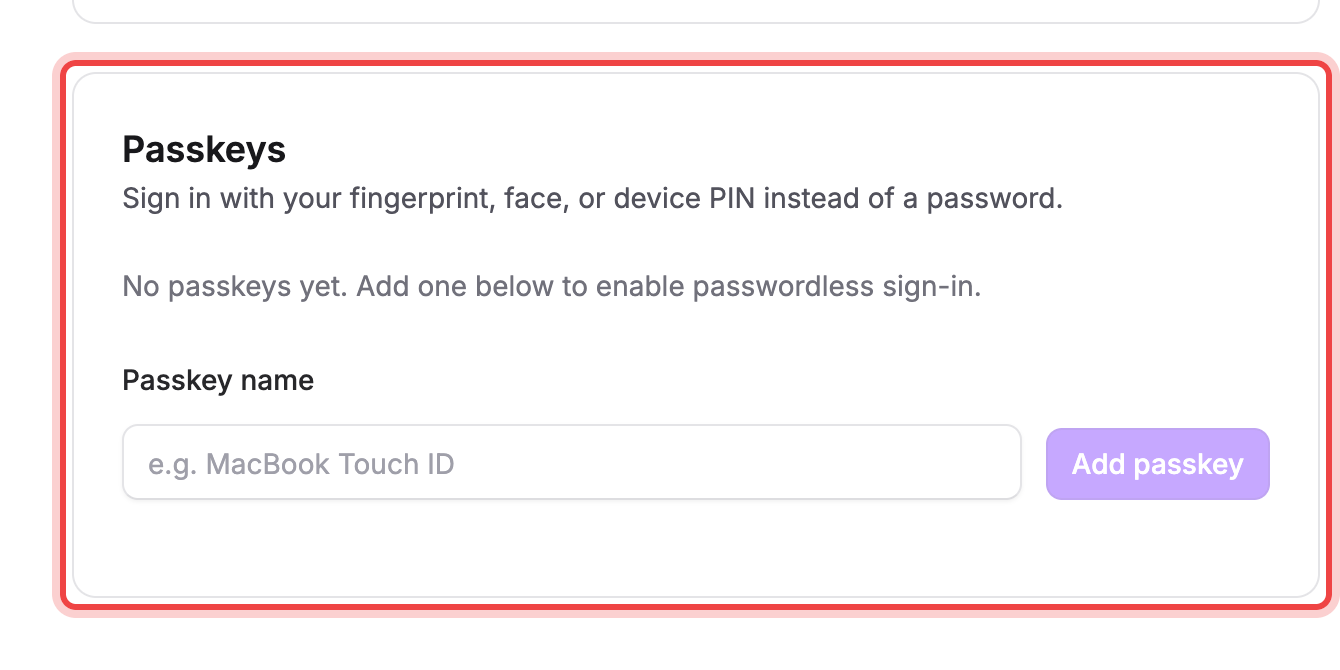
Each passkey you add shows when it was added and last used. Select Remove on any passkey to take it off your account. That only removes it from Maxforms, not from your device or password manager, so it's safe to add a replacement any time.
Connect Google or Microsoft#
- Select your avatar, then select Account Settings.
- Under Connected accounts, select Connect next to Google or Microsoft.
- Sign in with that account when the provider's page opens.
The login page always shows Continue with Google and Continue with Microsoft; once your account is connected, that button signs you straight in, no password required.
Disconnect a connected account#
- Under Connected accounts, select Disconnect next to the account.
- If you have a password, confirm it under Confirm your password, then select Disconnect again.
You can only disconnect an account when you have a password or another connected account to fall back on. Otherwise the button is disabled, with a note pointing you to set a password first. Disconnecting doesn't delete your Maxforms account, it just removes that sign-in option.
If a "Confirm your identity" dialog appears#
Adding or removing a passkey needs a recent sign-in. If Maxforms isn't sure it's really you, this dialog opens, offering Confirm with a passkey if you already have one, or your password. If you have neither, sign out, sign back in with Google or Microsoft, and try again.
If your browser says it doesn't support passkeys#
Passkeys need a modern browser and a passkey-capable device: Face ID, Touch ID, Windows Hello, or a security key. Try a different browser or device, or use a password or connected account instead.