Templates are complete, ready-made forms (contact forms, registrations, surveys, job applications) that you can copy into your workspace and edit. Select Templates in the sidebar to browse them all, preview any one, and select Use Template to get your own copy in the builder.
Browse the gallery#
- In the sidebar, select Templates.
- Search by name, category, or description, or filter with the category buttons: Contact, Lead Generation, Orders & Booking, Registration, Feedback & Surveys, HR & Recruitment, Support, Nonprofit, and Services.
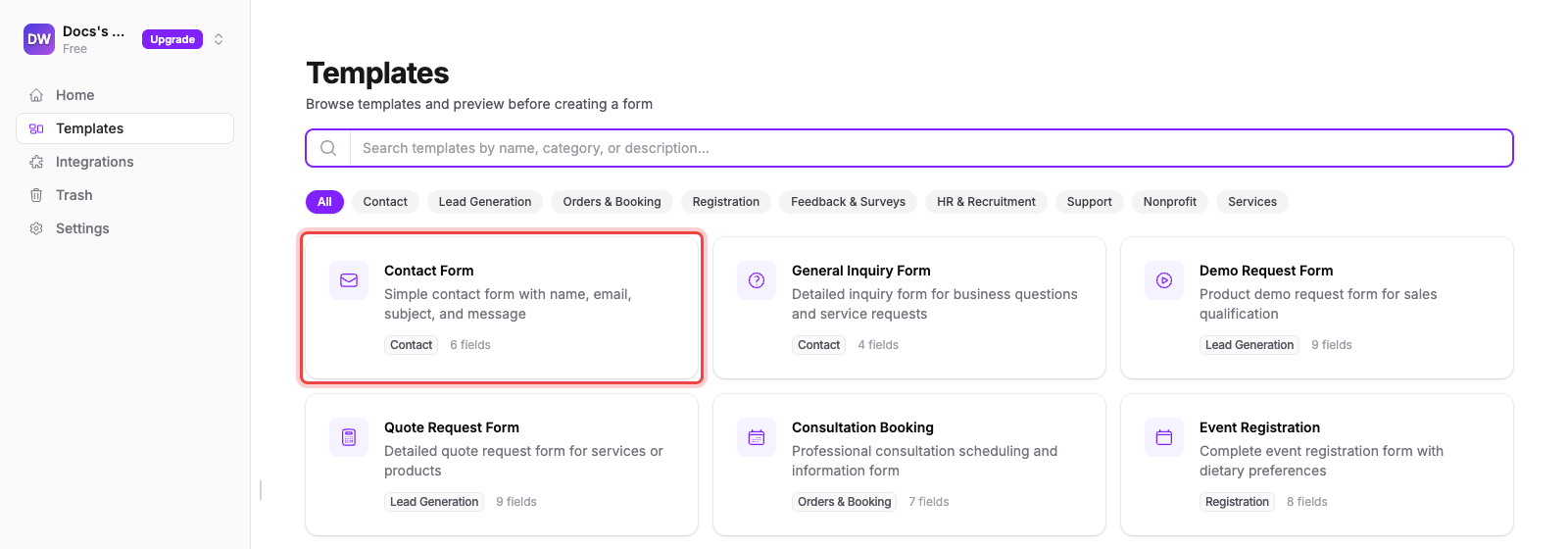
Each card shows the template's name, what it's for, its category, and how many fields it has.
Preview before you commit#
Select a card to open the template full-page, exactly as a respondent would see it, including multi-page templates, which show their Next button between pages.
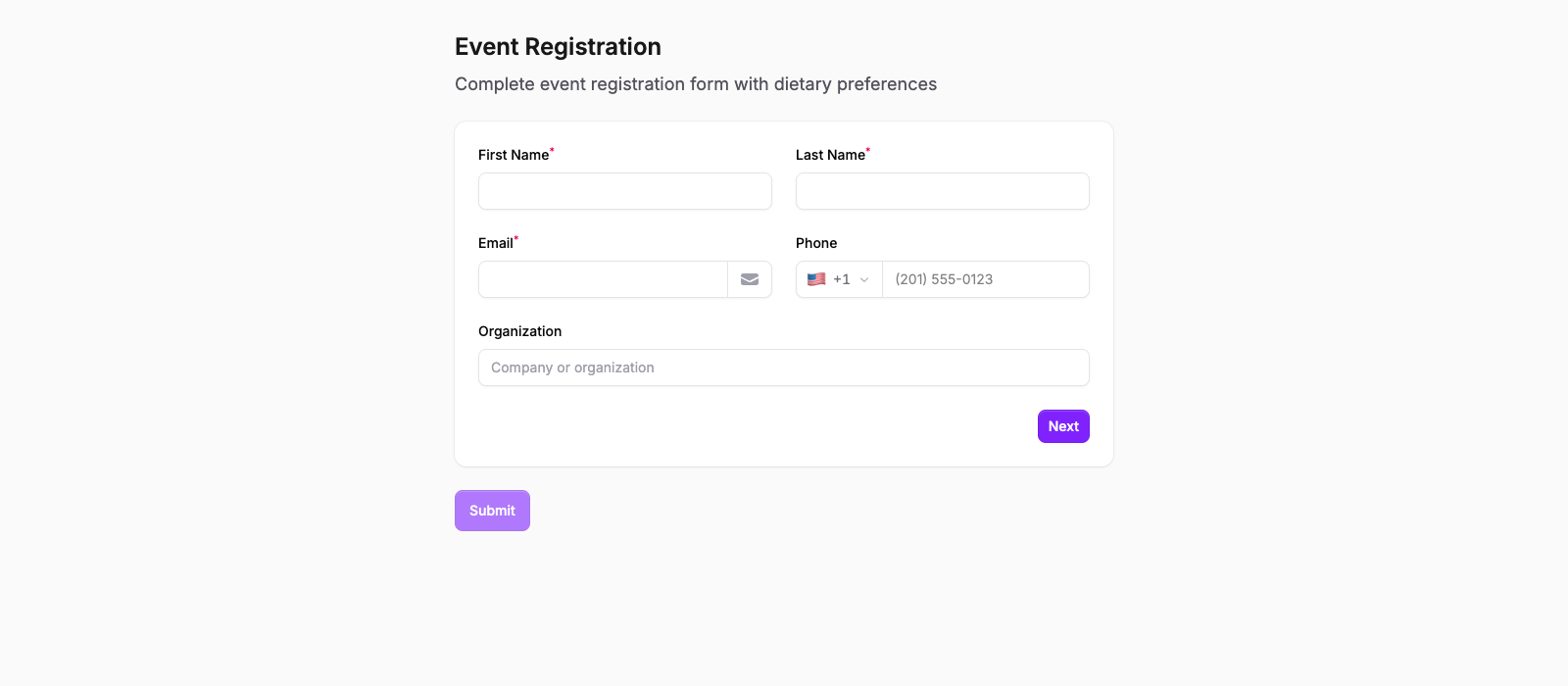
Nothing is created yet. Use the breadcrumb to go back to Templates and keep looking.
Use a template#
Select Use Template in the top-right corner. Maxforms creates a new form in your workspace, named after the template, and drops you straight into the builder on the Build tab.
What carries over is the whole form: every field, in order, with its labels, placeholder and help text, options, and validation rules. It arrives as a draft (Your form stays private until you publish), so you can rename it, add or delete fields, and rework the copy before anyone sees it.
Once it says what you need, select Publish.
Where templates sit in the create-form flow#
On a brand-new workspace, Home offers templates alongside the other ways in. There are six suggested templates under Or start from a template, a Browse all N templates link into the full gallery (the number is however many templates exist today), and Start blank. See Create your first form for the other two routes.
Once your workspace has forms, Home shows your forms list instead: reach the gallery from Templates in the sidebar.
If you land back on Home with "Form Limit Reached"#
Your plan caps how many forms a workspace can hold, and the copy would be one too many: the dialog tells you how many you're using. Select Upgrade Plan, or select Cancel and delete a form you no longer need. Deleted forms go to Trash, where you can restore them.