Invitations go out from Settings → Members. Enter an email address, pick a role, and Maxforms emails them a link to join. Inviting teammates needs a paid plan: the Free plan is single-user, so the invite form is there but switched off.
Send an invitation#
- Select Settings in the sidebar.
- Open the Members tab.
- In Invite Member, enter the person's email address.
- Choose their role. Editor is preselected; the description under the form updates as you change it.
- Select Send Invite.
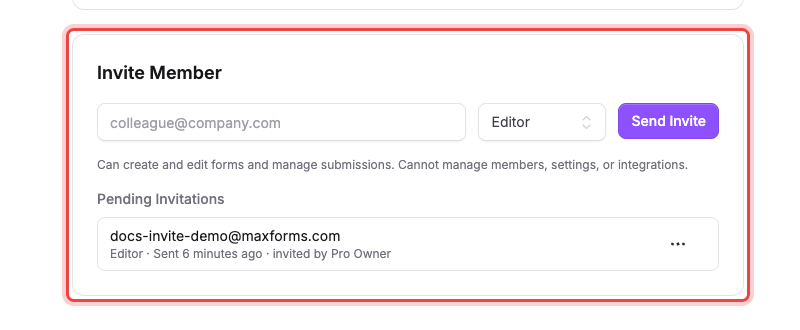
Maxforms confirms with Invitation sent to… and the address appears under Pending Invitations.
Only the owner and admins can invite. Admins can invite someone as Editor or Viewer; only the owner can invite someone as an Admin.
What the invitation looks like#
The email's subject is You've been invited to join {your workspace} on Maxforms, and it names the role they've been offered. It carries one Accept Invitation button, and the link expires after 7 days.
What they do next#
Selecting Accept Invitation opens a page headed Join {your workspace}, with a button that does the same. Nothing happens until they select it: opening the email, or a mail scanner following the link, never joins them by itself.
- If they already have a Maxforms account, they sign in and join. The workspace appears in their switcher immediately.
- If they don't, they create an account on the same page. It shows Log in or sign up to join {your workspace}, and once they sign up they land straight in your workspace rather than getting a personal one of their own.
- If they haven't verified their email yet, they see Verify your email to join. They're added automatically as soon as they verify.
- If they're signed in as a different account, Maxforms says so and offers to sign them out so they can continue with the invited address.
Manage pending invitations#
Every invitation you've sent that hasn't been accepted sits under Pending Invitations, showing the role, when it was sent, and who sent it. Select the … on the row:
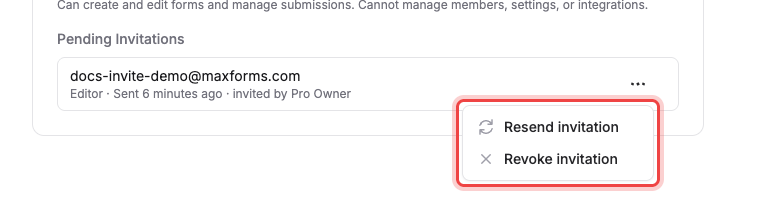
- Resend invitation: sends the email again with a fresh 7-day link. The previous link stops working.
- Revoke invitation: cancels it. Confirm with Revoke invitation; the old link stops working and the seat is freed.
Admins can't resend or revoke an invitation that was sent for the Admin role. That's the owner's to manage.
How many people you can invite#
Seats are counted per workspace, and the owner doesn't use one: the number is how many other people can be in the workspace.
- Free: single-user. No invitations.
- Pro: 3 seats.
- Business: 10 seats.
A pending invitation holds a seat until it's accepted or revoked, which is why the members list reads something like 1 of 3 seats used · 1 available (1 reserved by pending invitation).
If Send Invite is greyed out#
You're out of seats, and a Member limit reached message explains which case you're in:
- Your plan is single-user. Upgrade to invite teammates to this workspace. This means you are on Free.
- You've used all 3 of your plan's seats… This means every seat is taken: revoke a pending invitation or remove a member to free one, or upgrade.
The Upgrade plan button next to the message goes straight to Change your plan and manage billing. It only appears for the owner, since only the owner can change the plan.
If the invitation email never arrived#
- Check their spam or junk folder first: it's a one-off email from an address they've never seen.
- Check the address you typed in Pending Invitations. If it's wrong, revoke it and send a new one.
- Resend it from the … menu. That mints a new link, so ask them to use the newest email.
If you invite an address that's already in the workspace, you'll see This person is already a workspace member. A second invitation to a pending address gives An invitation has already been sent to this email: resend it rather than sending a duplicate.
If the link says the invitation is no longer valid#
It's older than 7 days, it's already been accepted, or it was revoked. Send a fresh one.
If they see "This workspace is full"#
The workspace ran out of seats between you sending the invitation and them accepting (usually because someone else accepted first, or the plan was downgraded). Their invitation is kept, so free a seat or upgrade and they can try the same link again.