Add a Page field wherever you want a new page to start; everything after it moves to the next page. Respondents move with the buttons at the bottom, and Insights shows where they stop.
Add a page break#
- Select Add field (or Insert field here at the point you want the break).
- In the Layout group, select Page.
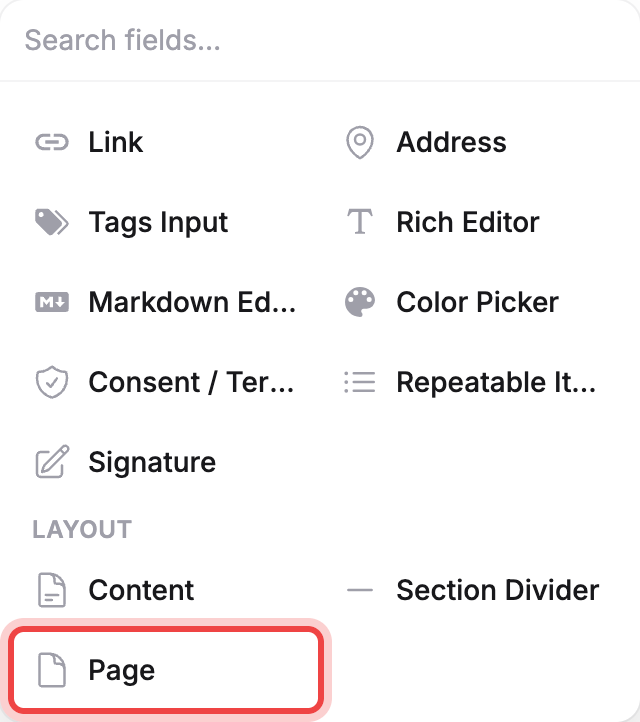
The page break drops straight into the field list with no extra setup: everything above it is one page, everything after it is the next, up to the following page break or the end of the form. The area before the first page break is always "Page 1", even though no marker sits there.
Name and reorder pages#
Each page break you add is named "Page 2", "Page 3", and so on, in the order you added them; reordering the list later doesn't renumber existing names. To rename one, click into the name shown in its row and type a new name; leaving it blank doesn't save. Page names show only in the builder, and to screen readers as "Step N of M"; respondents never see them, because the public form hides the page headers.
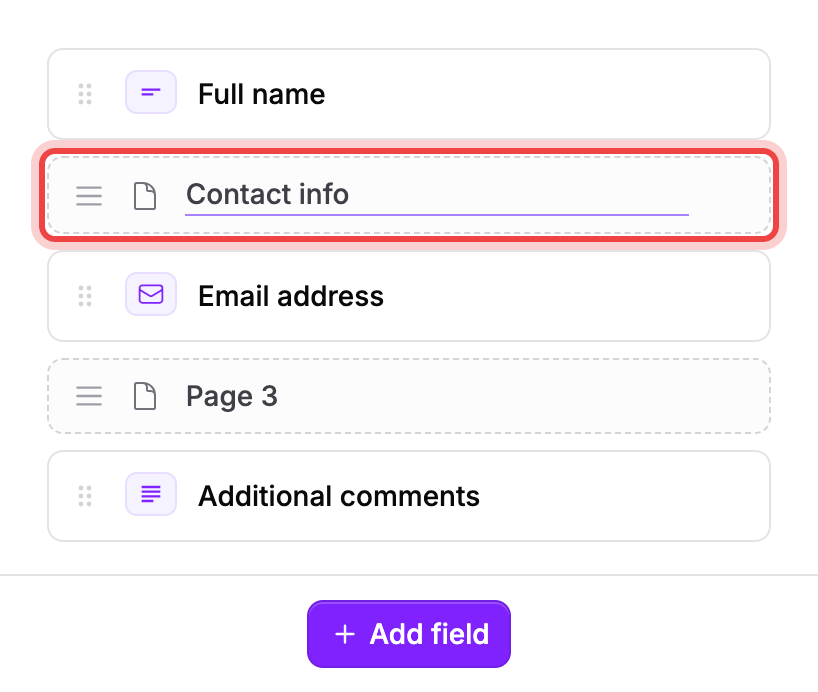
Page breaks sit in the same draggable list as your fields, so dragging one changes where that page starts, and dragging a field across a page break moves it onto the other page.
Remove a page#
- Hover the page break's row.
- Select the remove icon on the page row (its tooltip reads Remove page).
- In the Remove page? dialog, select Remove page.
Removing a page break merges its fields into the previous page; nothing is deleted. If a page break ends up with no fields after it, it's dropped automatically and respondents never see it as a page.
What respondents see#
Respondents move forward with a Next button and back with a Back button; the last page shows Submit instead of Next.
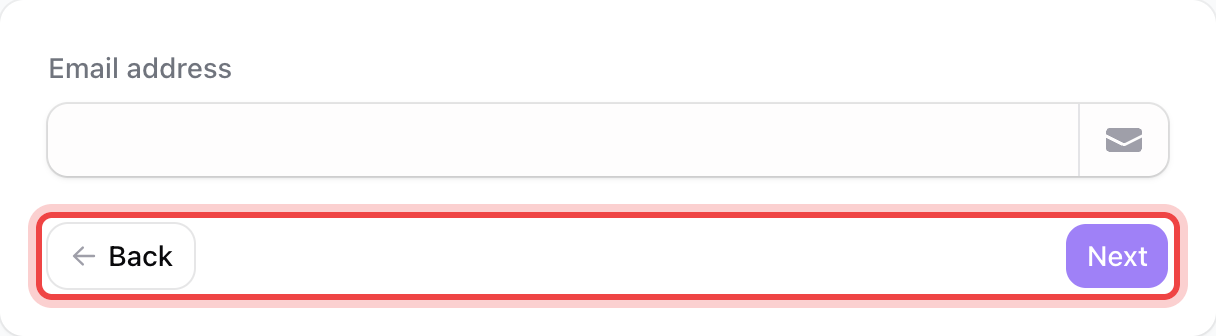
Selecting Next only checks the required fields on the page currently shown, not the rest of the form, so a respondent can't get stuck on a page they haven't reached yet.
Logic across pages#
Rules you build on the Logic tab work the same no matter which page the condition or the target field is on: visibility is calculated from the respondent's answers across the whole form, not page by page. See Show or hide fields with conditional logic.
If the Next button does nothing, then look for a required field on the page#
- Look for an inline error message under a field on the current page.
- Fill in that field, then select Next again.