Everything about your subscription is on Settings → Billing, and only the workspace owner can open it. Plans are bought per workspace, so if you run two workspaces you're on two plans. Your card details and invoice history live in Stripe, one click away from that page.
This is the subscription you pay Maxforms. It's a different thing from the money your respondents pay you through a payment field on a form, because you are the merchant of record.
See where you stand#
The Current Plan card names your plan and shows what you've used this period against your limits: forms, submissions this month, and workspace members.
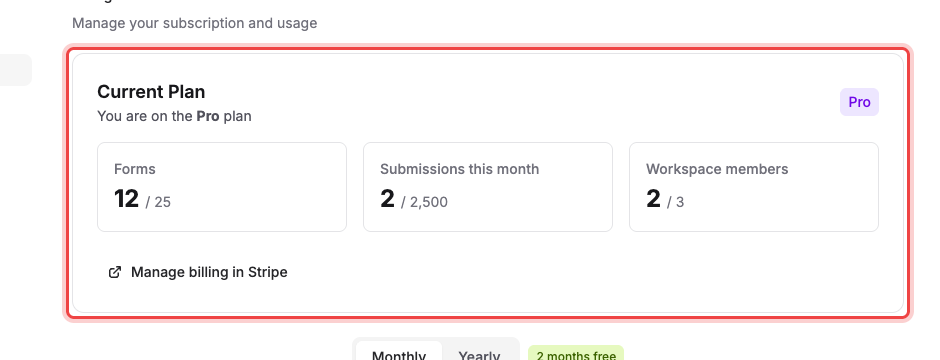
A tile turns red with ⚠ Over limit when you pass one.
What the plans include#
Three plans are on sale: Free, Pro, and Business. The cards on the Billing page list what each one includes and what it costs today. A workspace already on a paid plan sees the price it is actually being charged.
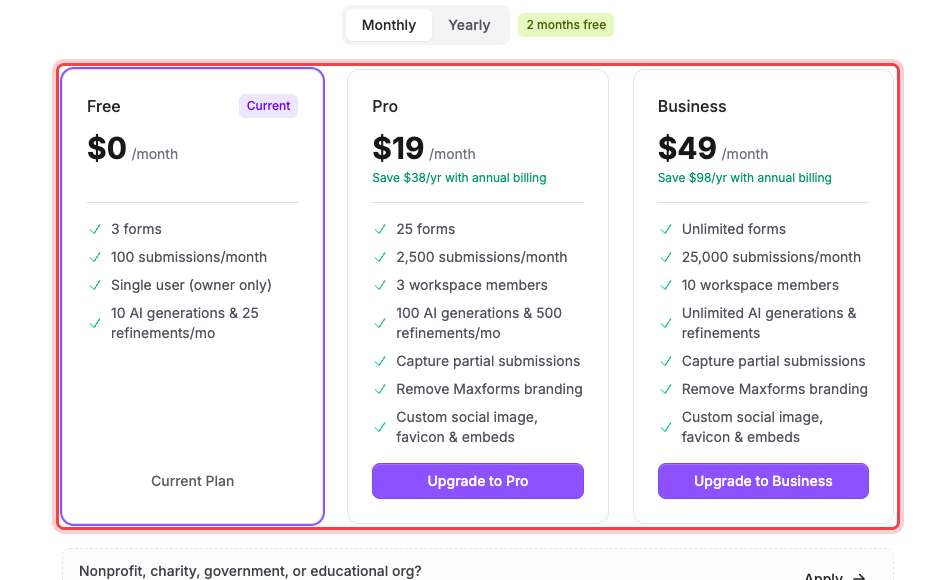
What changes as you move up:
| Free | Pro | Business | |
|---|---|---|---|
| Forms | 3 | 25 | Unlimited |
| Submissions per month | 100 | 2,500 | 25,000 |
| Monthly email allowance | 100 | 2,500 | 25,000 |
| Notification recipients | 10 | 10 | 10 |
| Workspace members (besides the owner) | None | 3 | 10 |
| File storage | 1 GB | 50 GB | 250 GB |
| Maximum upload size | 10 MB | 50 MB | 50 MB |
| AI generations & refinements per month | 10 & 25 | 100 & 500 | Unlimited |
| Capture partial submissions | ✓ | ✓ | |
| Remove Maxforms branding | ✓ | ✓ | |
| Custom social image, favicon & embeds | ✓ | ✓ |
Above the cards, the Monthly / Yearly switcher flips every price between the two billing cycles. Yearly is billed once a year and works out at 2 months free.
Upgrade from Free#
- Open Settings → Billing.
- Choose Monthly or Yearly.
- Select Upgrade to Pro or Upgrade to Business.
- Fill in your details on the Stripe checkout page that opens. If you have a promotion code, enter it there.
- Finish the payment.
You come back to the Billing page with Your subscription has been activated successfully and your new limits already in force. If you back out of checkout instead, nothing changes: you'll see Checkout was canceled. No changes were made to your subscription.
There's no free trial. A paid plan starts the moment you pay for it.
Move between paid plans, or switch billing cycle#
- On the Billing page, select the button on the plan you want: Upgrade to Business, Downgrade to Pro, or Switch to yearly.
- Read the summary. It tells you what changes and roughly what it costs now. An upgrade adds a prorated charge for the rest of the period, a downgrade credits the unused part of what you've already paid, and changing between monthly and yearly resets your billing date so the difference is settled immediately.
- Select the confirm button to apply it.
The new limits apply straight away. You don't wait for the next invoice.
Update your card, or find an invoice#
Both live in Stripe. Select Manage billing in Stripe on the Current Plan card and you'll land in Stripe's billing portal, where you can change the payment method and open or download past invoices. Close it and you're returned to the Billing page.
The button appears once the workspace exists in Stripe at all. That usually means a subscription, but it also happens if you started a checkout and didn't finish it, or if the workspace has taken form payments. If you've never subscribed, the portal will simply have no subscription to show.
Cancel your subscription#
Cancelling means going back to Free.
- On the Billing page, select Downgrade to Free.
- Read the summary and select Continue to cancel.
- Finish the cancellation in Stripe's billing portal.
You keep your paid features until the end of the billing period you've already paid for, and the workspace drops to the Free plan after that. Cancelling doesn't delete anything: your forms and submissions stay put, but Free-plan limits start applying, so forms over the limit and extra members will need sorting out.
To resume afterwards, subscribe again from the Billing page.
If you go over your submission limit#
When a workspace goes over its monthly allowance, you get a 7-day grace period. Your forms keep accepting responses during it, you see a banner counting down, and the owner gets an email. Upgrade before the seven days are up, or wait for the calendar month to reset, and nothing is lost. If neither happens, forms stop accepting new responses until one of them does.
The grace period applies to every month you go over, not only the first. It starts the moment the limit is crossed in that month. If the calendar month resets first, you never reach the cutoff, because your submission count starts back at zero.
Maxforms warns the workspace owner by email at 80% and again at 100% of the monthly allowance.
Only the responses you actually received count. A submission is billed when it completes: it cleared the spam filter, its files passed their scan, and it owes no payment that hasn't landed. So a declined card, a checkout someone walked away from, and a charge still clearing all cost you nothing, and they sit in the Incomplete folder until they either complete or don't. Responses caught by spam filtering don't count either. See How Maxforms filters spam.
If you get a monthly email allowance warning#
That one is only a heads-up. Notification emails keep sending past the allowance; the warning exists so a spike doesn't surprise you.
If there's no Billing tab#
Billing is owner-only. Admins, editors, and viewers don't see the tab or the upgrade prompts. If you need to change the plan and you're not the owner, ask them, or have them transfer ownership to you. See Roles and what each one can do.
If a charge or refund looks wrong#
Every charge for your Maxforms subscription is on the invoice in Stripe's billing portal, including any proration from a mid-period plan change. Start there. If the invoice doesn't explain it, email [email protected] with the invoice number.