Increase Seats per time slot when several people can attend the same time. Each response takes as many seats as its party size; leave Max party size at 1 when every attendee books separately.
Your workspace needs Services access before you use this setup.
- Open Advanced edit for the Appointment Booking field.
- Select the Time slots tab.
- Set Seats per time slot to the number of seats at one time.
- Set Max party size to the most seats one customer may book in a single response.
- Confirm the Appointment length and the Buffer.
- Select Save changes.
- Publish the form.
- Submit enough test bookings to fill one time.
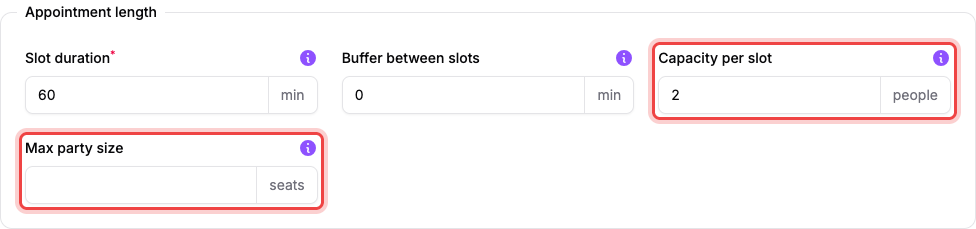
For example, capacity 8 with max party size 1 permits eight separate bookings for the same time. Capacity 30 with max party size 6 lets a family of five book together and leaves 25 seats.
When fewer seats remain than the max party size, the time shows how many are left, so a group sees "3 left" before choosing how many.
To charge per seat, see Sell tickets per time slot.
Capacity is limited to one form and one booking field. It does not combine availability for a person, room, or several forms.
If two services use the same room, then avoid overlapping availability#
Maxforms does not combine capacity across forms or resources. Adjust each form's hours, seasons or special dates so the two services cannot overbook the shared room.