Conditional logic lets a form ask follow-up questions only when they're relevant. Open the Logic tab in the builder and write a rule: IF an answer matches, THEN show or hide a field. Respondents see fields appear and disappear as they type, without the page reloading.
Build your first rule#
-
In the builder, open the Logic tab.
-
Select Add your first rule (or Add rule if you already have one).
-
Under IF, select the New condition chip.
-
Pick the Field to test, an operator such as Equals, and the Value to compare against (for a choice field, the value is a dropdown of that field's options).
-
Select Done.
-
Under THEN, select the Show field chip.
-
Choose the Action (Show field or Hide field) and the Target field, then select Done.
On plans that include conditional notification routing, the same dropdown also offers Send notification to, which routes the notification email for matching responses to a different address instead of showing or hiding a field. See Route notifications with logic rules.
-
Select Publish changes to push the rule to your live form.
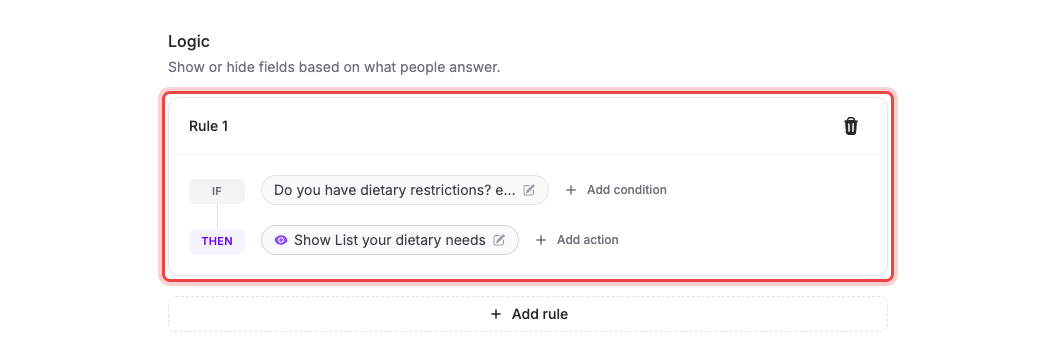
Each rule sits in its own card headed Rule 1, Rule 2, and so on, with a trash icon to remove it.
The conditions you can test#
The operators offered depend on the field you're testing, so you only ever see comparisons that make sense:
- Equals and Does not equal: on text-style fields, Number, Currency, Date, Time, and single-choice fields such as Select and Radio.
- Contains and Does not contain: on text-style fields such as Short text, Long text, Email and Address, and on multi-choice fields such as Multi Select and Checkbox List. Multi-choice fields offer only these two plus the empty checks, because you're testing membership rather than an exact match.
- Greater than and Less than: on Number, Currency and Date fields.
- Is empty and Is not empty: on everything except yes/no fields, including ones with nothing else to compare like File Upload and Signature, which offer only these two.
Yes/no fields (Checkbox, Toggle and Consent) are the exception: they offer Equals only, since ticked and not-ticked already covers every case.
Testing an Address adds an Attribute dropdown, so you can match on the Full address, Street address, City, State / Region, Postal / ZIP code, or Country rather than the whole thing.
More than one condition#
Select Add condition to add another test to the same rule. A second condition reveals a Match all / any of the following switch: all means every condition has to be true, any means one is enough.
Add action works the same way: one rule can show or hide several fields at once.
What respondents see#
The rule runs in the browser as people fill the form in. Until the condition matches, the target field simply isn't on the page; the moment it does, the field slides in where it belongs.
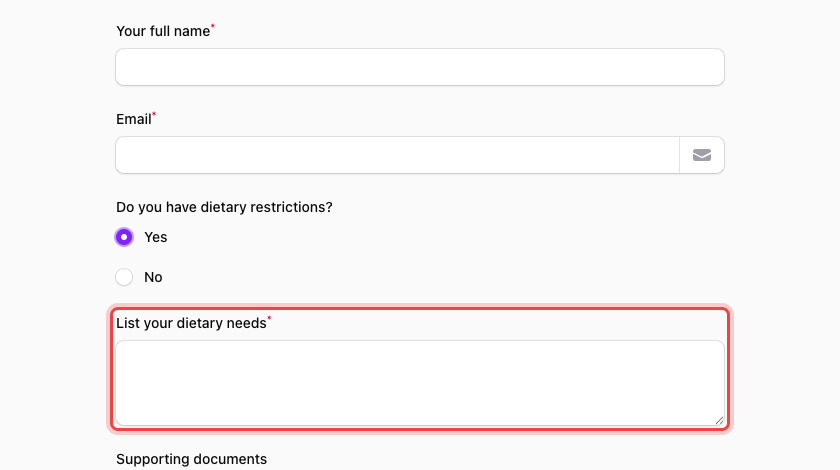
The live preview in the builder behaves the same way, so you can test a rule by answering the preview on the left.
If a hidden field is marked Required#
It doesn't block the form. A field that a rule is currently hiding is skipped when the form is submitted, even when Required Field is switched on, so a "Yes/No" question can safely gate a required follow-up. Respondents who answer "No" never see the follow-up and can submit straight away.
If you delete a field a rule points at#
The rule stays behind and stops working. The Logic tab shows a Logic warnings panel reading A rule references "…", which no longer exists — it will never match, and the rule displays the missing field's internal id instead of a name.
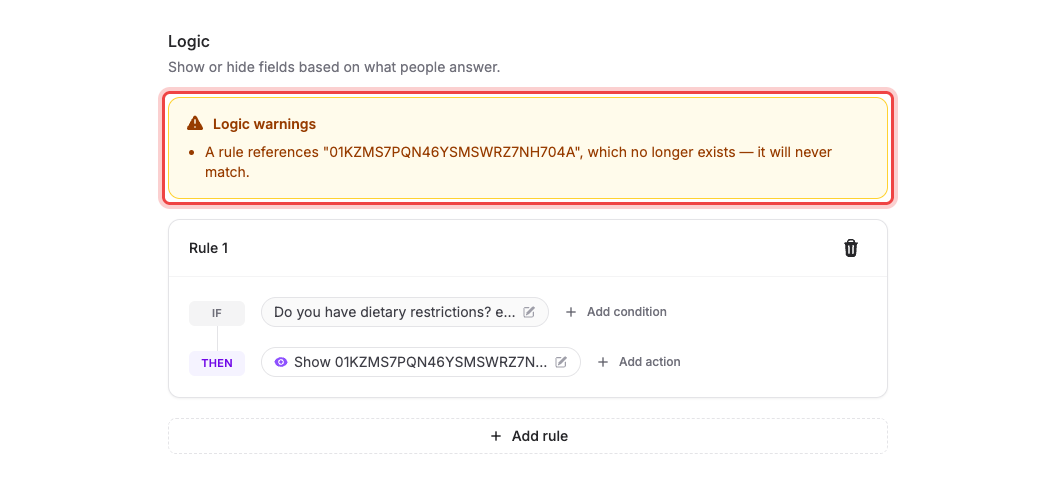
Maxforms also refuses to publish while that's true: selecting Publish changes returns Can't publish yet. Fix the highlighted logic rules to publish. Point the rule at a field that still exists, or remove the rule with its trash icon, then publish again.