Refund a form payment straight from the submission in Maxforms, or from your provider's own dashboard, because you are the merchant of record: either way, the submission's payment status updates to Refunded.
Refund from Maxforms#
- Open your form and select the Submissions tab.
- Open the paid submission.
- Select Refund.
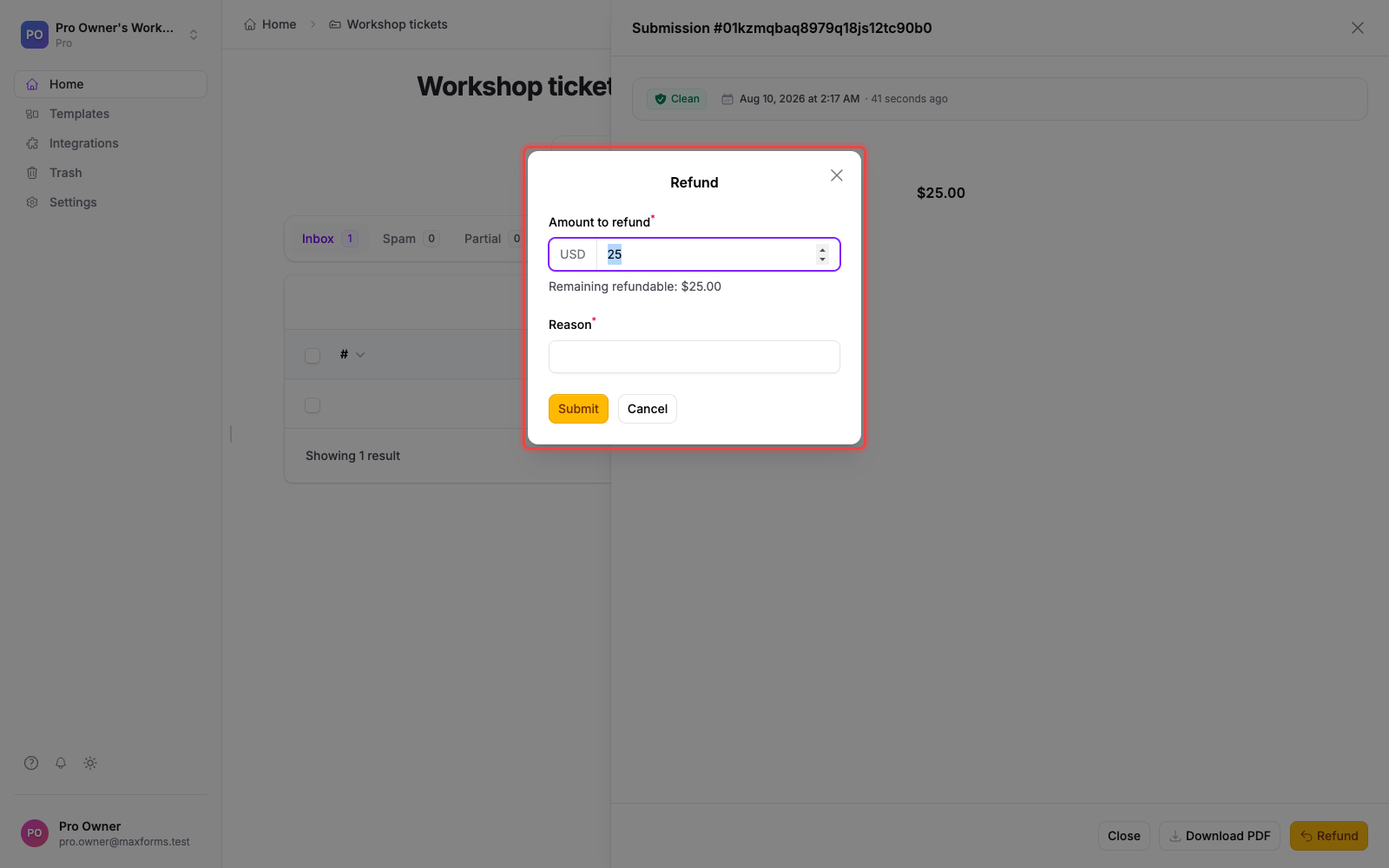
- Enter the Amount to refund: the full amount is pre-filled, or enter less for a partial refund. The panel shows how much is still refundable.
- Enter a Reason.
- Check Send confirmation to: it is pre-filled with the workspace owner's address. Change it to send this refund's confirmation somewhere else, such as a billing department.
- Select Submit.
Only the workspace owner can issue refunds. You can refund a payment in several steps: each partial refund updates the remaining refundable balance, and the submission shows Partially refunded until the full amount is returned, then Refunded.
One provider quirk handled for you: card gateways can only refund a transaction after it settles (typically overnight). For an Authorize.net or CardPointe payment, the button reads Refund / Void instead of Refund, because settlement isn't known until you open it. If you select it before the charge settles, Maxforms voids the transaction instead of refunding it: the respondent sees the charge disappear rather than a refund line.
Refund from your provider's dashboard#
Refunding at the source works just as well: find the payment in your Stripe Dashboard, Authorize.net Merchant Interface, or CardPointe portal and refund it there. The submission's payment status updates automatically: instantly for Stripe and Authorize.net, and within a short while for CardPointe, which Maxforms reconciles on a schedule.
Either way, your provider's processing fee from the original payment is generally not returned when you refund; that's the provider's policy, not a Maxforms rule.
If you use Services#
If Services is on for your workspace, the same field can also take subscriptions or hold a request for review: see Choose your service setup.
Disputes and chargebacks#
A dispute (chargeback) starts when a cardholder challenges the payment with their bank. The dispute is legally between you and the cardholder: you respond in your provider's dashboard, where submitting evidence, accepting the dispute, and any outcome all happen. Maxforms can't respond for you.
For Stripe payments, Maxforms emails you and adds an in-app notification when a dispute is filed, and the submission's payment shows a dispute marker. For Authorize.net and CardPointe, watch for dispute notices from the provider itself; they arrive in your merchant portal and by email from the provider.