The builder splits in two: a live preview of your form on the left, your field list on the right. Four tabs across the top, Build, AI, Logic and Design, switch what the right side does. Nothing you change on the Build, AI or Logic tabs reaches your live form until you select Publish; Design changes go live as soon as you save them.
Open the builder#
- On Home, select your form's name.
- Select Edit in the top-right corner.
The four tabs#
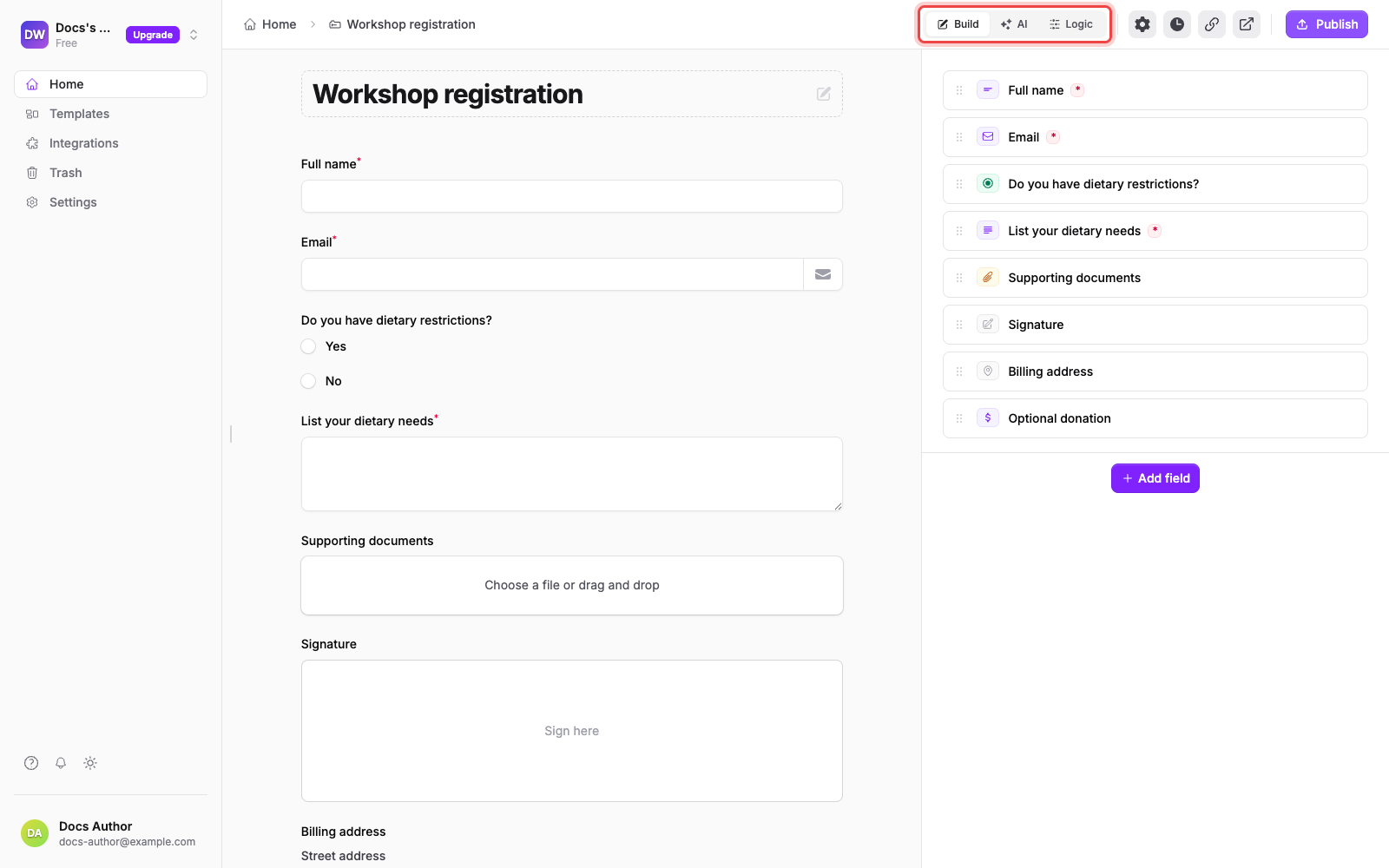
- Build: the default. Every field you've added is listed on the right, with Add field at the bottom. The preview on the left updates as you type.
- AI: swaps the field list for a chat panel, Ask me to change your form. Describe a change in your own words, such as "Add a phone number field" or "Make it shorter", or use Attach to hand it a document.
- Logic: rules that show or hide fields based on what people answer. See Show or hide fields with conditional logic.
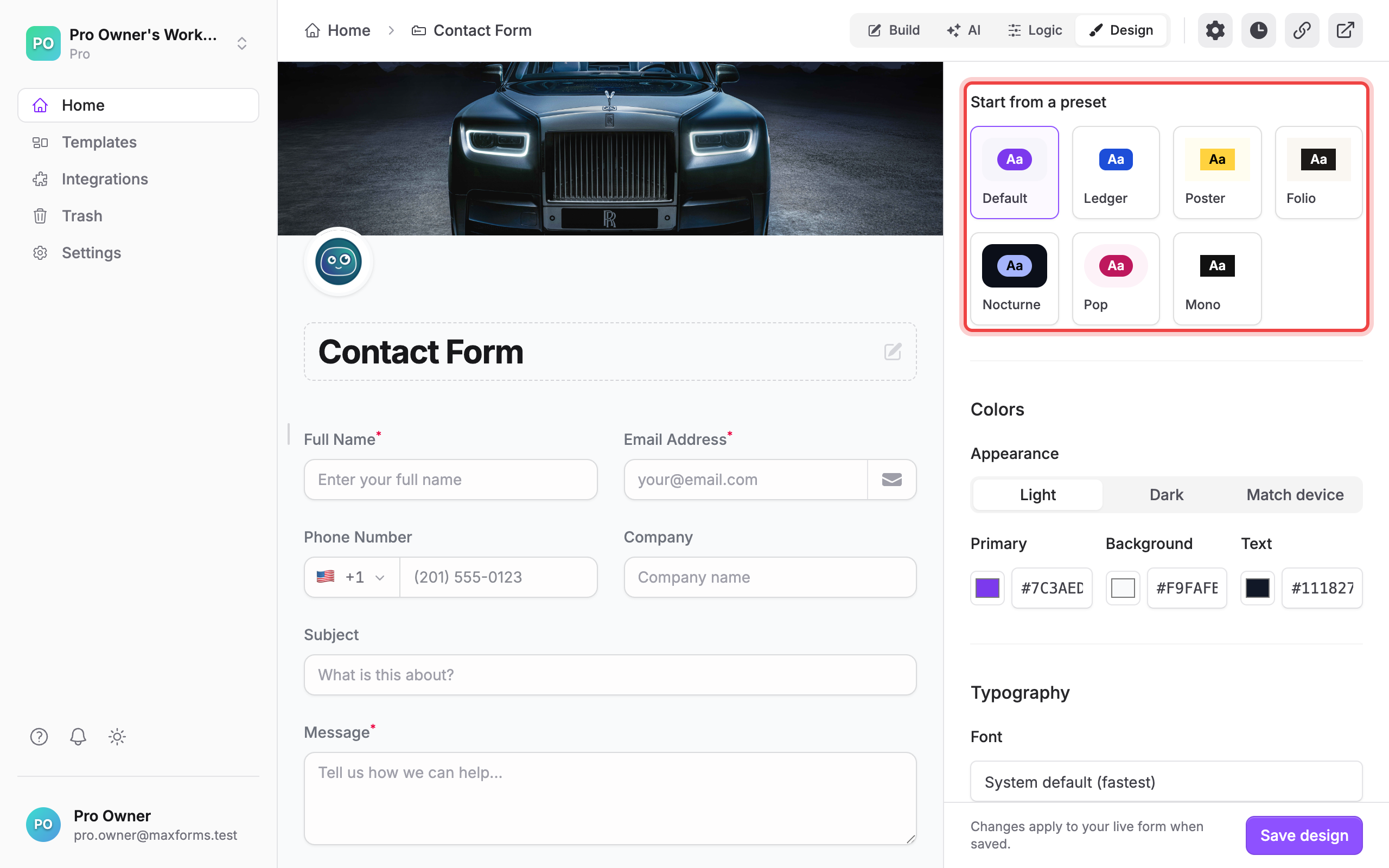
- Design sets how the form looks: pick a preset, then adjust colors, font, text size, corners, form width, spacing, alignment and the logo, cover and background images. Select Save design to push your changes straight to your live form, no need to publish. The full walkthrough is Design your form.
Two ways to edit a field#
Select a field's name in the list to rename it in place. For everything else, select Advanced edit on that row: the Edit field dialog has a General tab (label, field type, placeholder, help text, and the type's own settings) and a Validation tab (Required Field, Unique Values Only, and any limits the type supports).
Each row also carries Drag to reorder, Duplicate field, and Delete field; hovering between two rows reveals Insert field here.
Deleting a field people have already answered asks you to confirm, and tells you how many responses it has: After you publish, it won't appear on the form. Existing responses keep their answers.
The buttons beside the tabs#
- Settings opens the form's Settings tab.
- Version history lists the versions you've published; see Duplicate a form, or go back to an earlier version to restore one.
- Copy link copies the form's public URL.
- Open form opens the live form in a new tab.
Publish, or throw the changes away#
A form that has never been published shows a reminder, Your form stays private until you publish, and a single Publish button.
Once it's live, editing anything replaces that with two buttons: Publish changes pushes your edits out, Discard throws them away and returns the builder to the last published version. Respondents keep seeing the published form until you publish again.

Discarding asks you to confirm first: Discard your unpublished draft changes? This cannot be undone.
Everything else about your form#
Select your form's name in the breadcrumb to leave the builder. That page holds the rest of the form's tabs: Insights, Submissions, Integrate, Share, and Settings.
Ready to go live? See Publish and share your form.